
Organization structure and unit settings
Organization administrators
For organization administrators — the organization tree, creating, editing, moving and archiving sub-units (departments, sub-organizations, teams); unit settings — requiring two-factor authentication, AI assistance, allowed email domains, the default language, the contact address and inheritance.
In Embedarium your organization is set up as a tree: the organization at the top, and below it units such as faculties, departments, divisions or teams. The tree decides three things:
- Roles apply in the unit where they're assigned and (if you choose) in the units below it.
- Licenses are delegated down the tree to sub-units (see Licenses and seats).
- Settings are inherited from a parent unit by its sub-units.
The administration screens are in the Management section of the sidebar and always open for your working unit. To manage a different unit, switch to it with the unit picker in the top bar (see Working in more than one unit).
Note
To see the screens in this section you need the organization owner, organization admin or department manager role. A department manager manages members and seats in their own unit and can create sub-units; the organization owner and organization admins manage the whole organization.
The organization structure screen#
Organization Structure shows the tree. Each row shows the unit's name, type and number of members; your working unit is marked Your working unit. Use the arrows to expand and collapse branches.
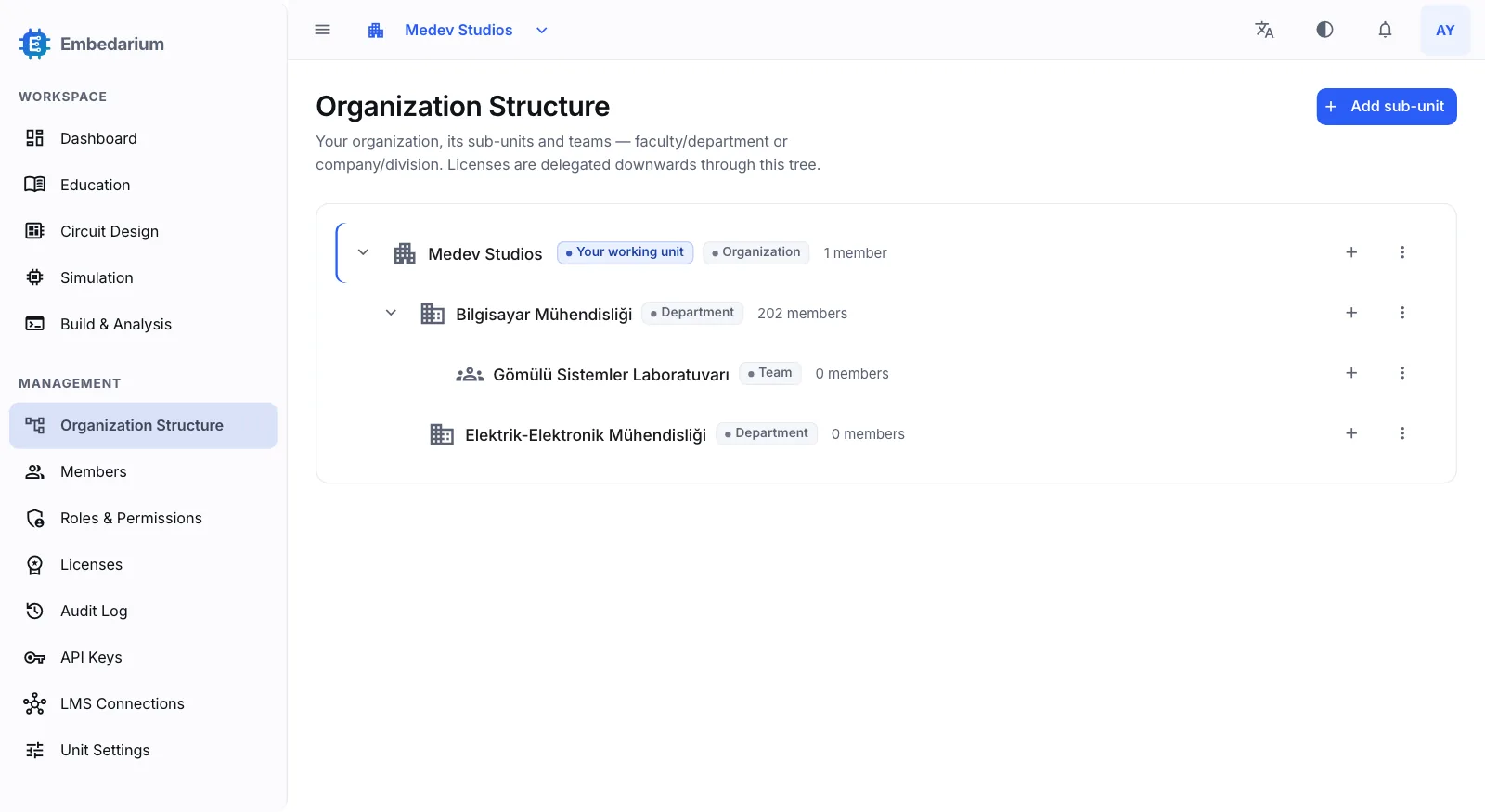
Adding a sub-unit#
- Select Add sub-unit at the top right, or the + button on a unit's row. The row button creates the new unit under that unit.
- Type the Unit name (at least 2 characters).
- Choose the Unit type: Department, Sub-organization or Team.
- Optionally add a Description and select Create.
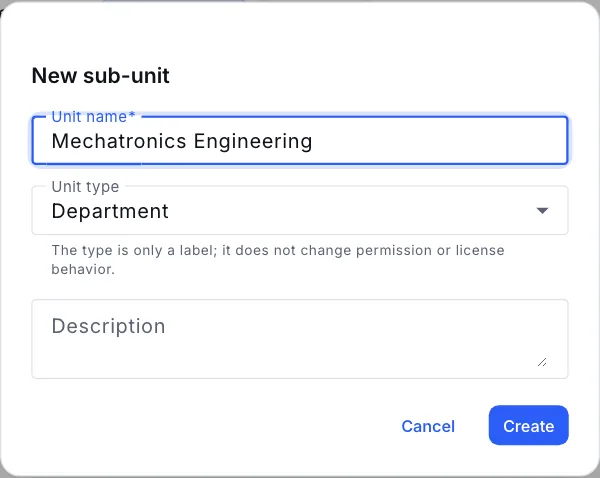
Tip
The unit type is only a label; it doesn't change permission or license behavior. Choose the one that fits your organization's language — a department at a university, a division or project team at a company.
Whether sub-units can create units below themselves is set by the Sub-units may create their own sub-units switch in Unit Settings (below). Your plan may limit the number of units and the depth of the tree; if you hit a limit, the screen says why.
Unit actions: edit, move, archive#
The ⋮ button on a unit's row opens its actions.
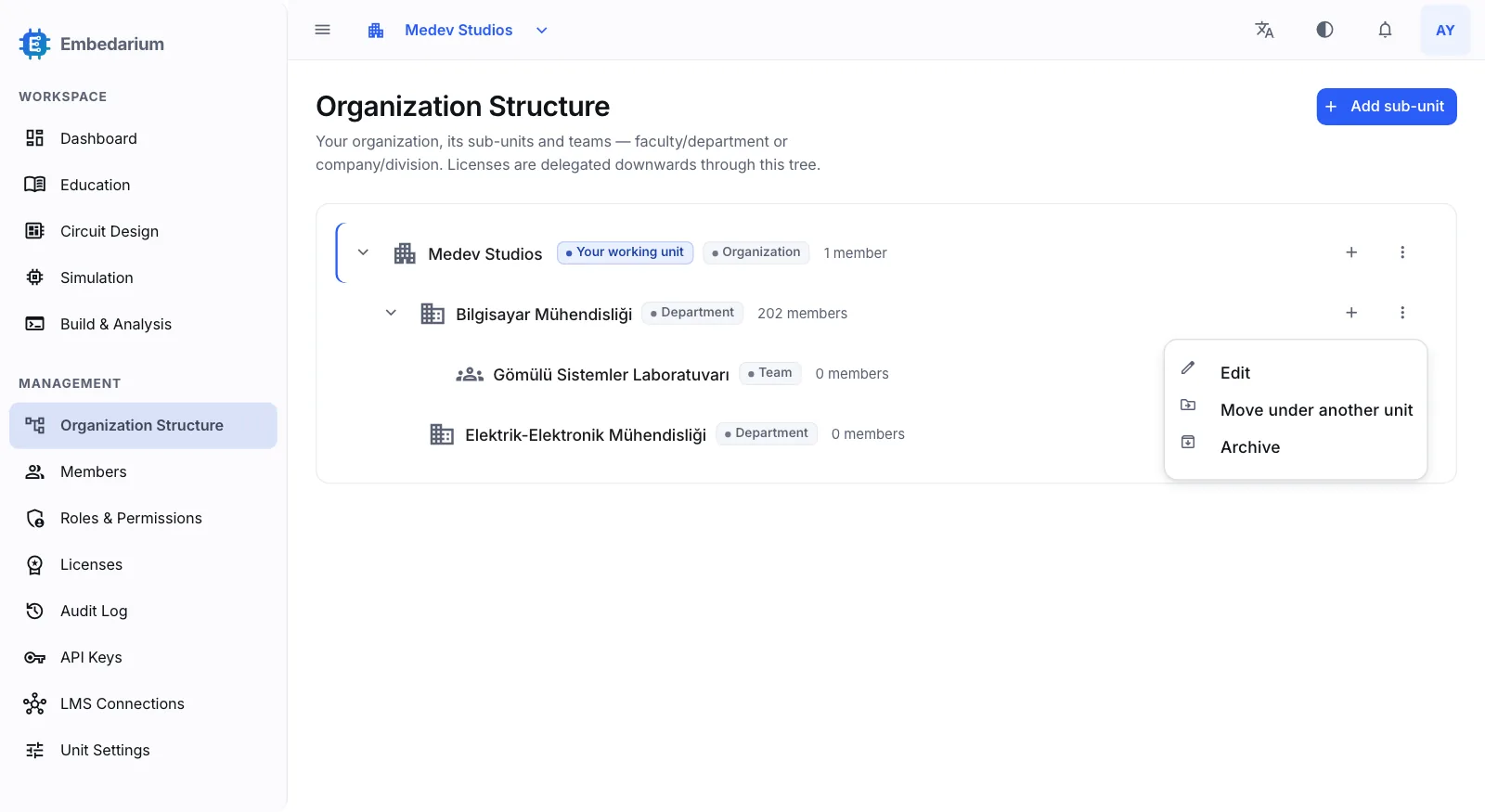
- Edit: changes the unit's name and description. The unit's type and its parent unit aren't changed here.
- Move under another unit: moves the unit, together with its sub-units, under a different parent unit (below).
- Archive: removes the unit from the structure; its records aren't deleted. Archiving is refused if the unit has sub-units, members, license allocations or courses attached — move or close those first.
Moving a unit#
- Choose Move under another unit from the unit's ⋮ menu.
- Choose the New parent unit.
- The dialog calculates the move's impact: how many sub-units move along, the new depth and whether any licenses are lost.
- Select Move.
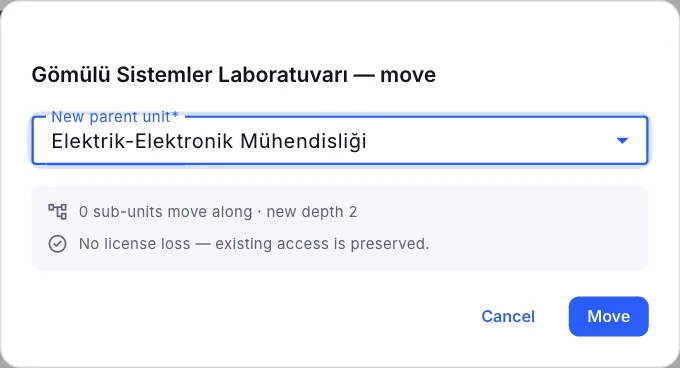
Important
If a unit gets licenses from its old parent, those licenses may be lost after the move. The dialog then lists the licenses that will be lost and how many users will lose access; to move, you must tick I understand the license loss and confirm the move. A move that exceeds the allowed depth can't be made.
Unit settings#
Unit Settings holds the rules for your working unit. Settings are inherited: if a sub-unit hasn't set a value itself, it uses its parent's. An inherited setting says which unit it comes from; if you change it, the unit starts using its own setting, and Use (parent unit)'s setting returns it to inheriting.
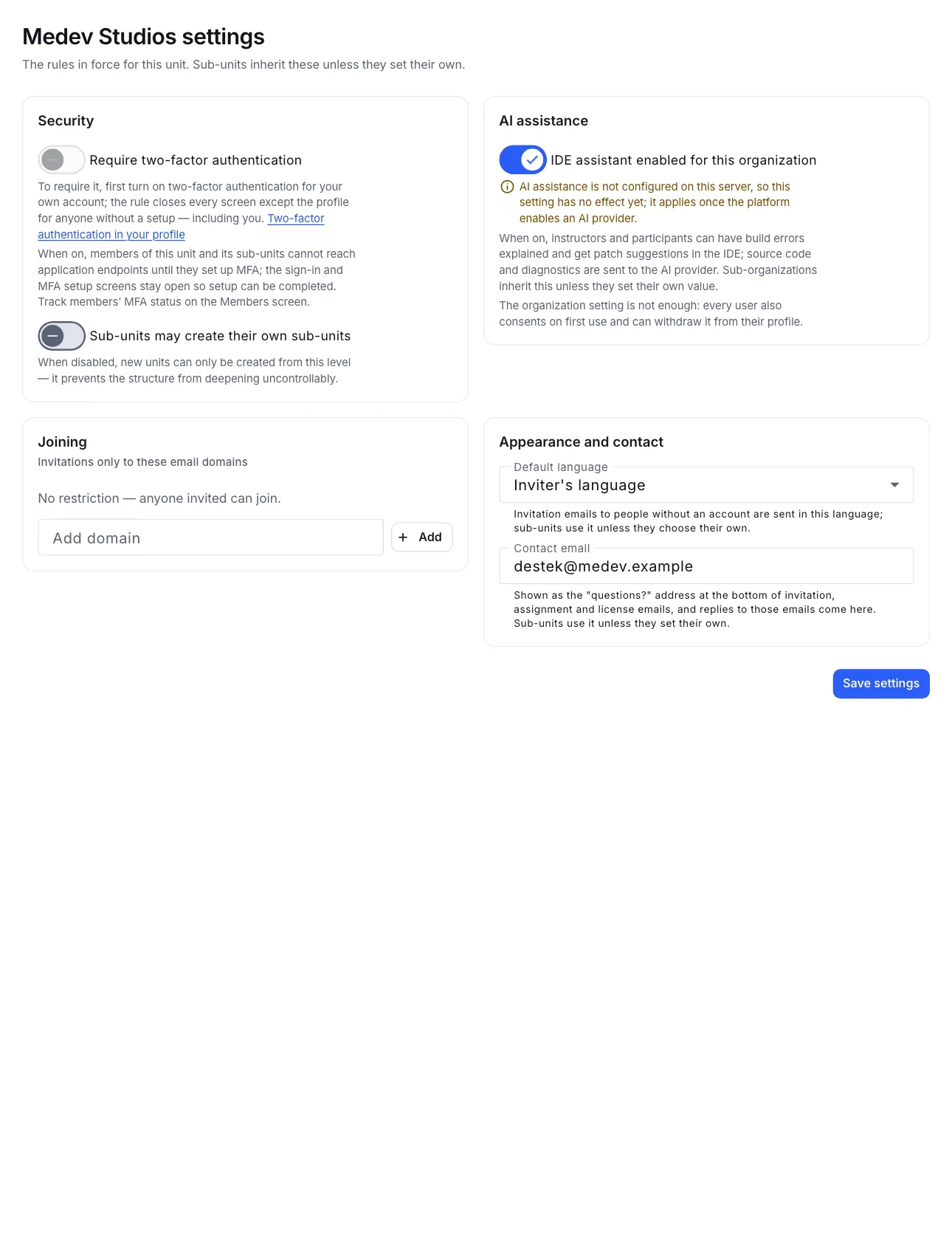
Save your changes with Save settings.
Security#
- Require two-factor authentication: while it's on, members of this unit and its sub-units can't open any screen except their profile until they set up two-factor authentication. You must set up two-factor authentication on your own account before turning it on. If a parent unit requires it, a sub-unit can't remove the requirement. Details: Requiring two-factor authentication.
- Sub-units may create their own sub-units: while it's off, new units can only be created from this level; this keeps the structure from deepening uncontrollably.
AI assistance#
Note
The AI assistant isn't available yet; it is planned for later (see The AI assistant). The switch below is already in the settings, but it has no effect until then and nothing is sent anywhere.
The IDE assistant enabled for this organization switch will let instructors and participants have build errors explained and get fix suggestions in the IDE; while it's on, source code and compiler diagnostics will be sent to the AI provider. Sub-units inherit it unless they set their own value. The unit setting alone won't be enough: every user also consents on first use (see AI assistance consent), and your organization's license must include the AI Assistance module.
Joining: allowed email domains#
If the Invitations only to these email domains list is empty, anyone you invite can join. If you add a domain (for example medev.example), invitations can only be sent to addresses in those domains.
- A parent unit's list applies in its sub-units too. A sub-unit can't widen the list; it can only narrow it with its own list.
- A domain that isn't on the parent unit's list is shown in the sub-unit as No effect: nobody can be invited with it. Remove it, or ask for it to be added to the parent unit's list.
Appearance and contact#
- Default language: the language of invitation emails sent to people without an account. With Inviter's language, the email goes in the language of the person who sent the invitation.
- Contact email: shown as the "questions?" address at the bottom of invitation, assignment publication and license warning emails; replies to those emails also go to this address. Sub-units use it unless they enter their own.
Last updated:
Could not find what you need? Write to support — tell us the screen and what you expected to happen.