
My courses and assignments
Students and participants
For students and participants — joining a course (invitation, join code, LMS), following the course content, submitting code, circuit, file and quiz assignments, drafts and attempts, due dates and late submission, grades and feedback.
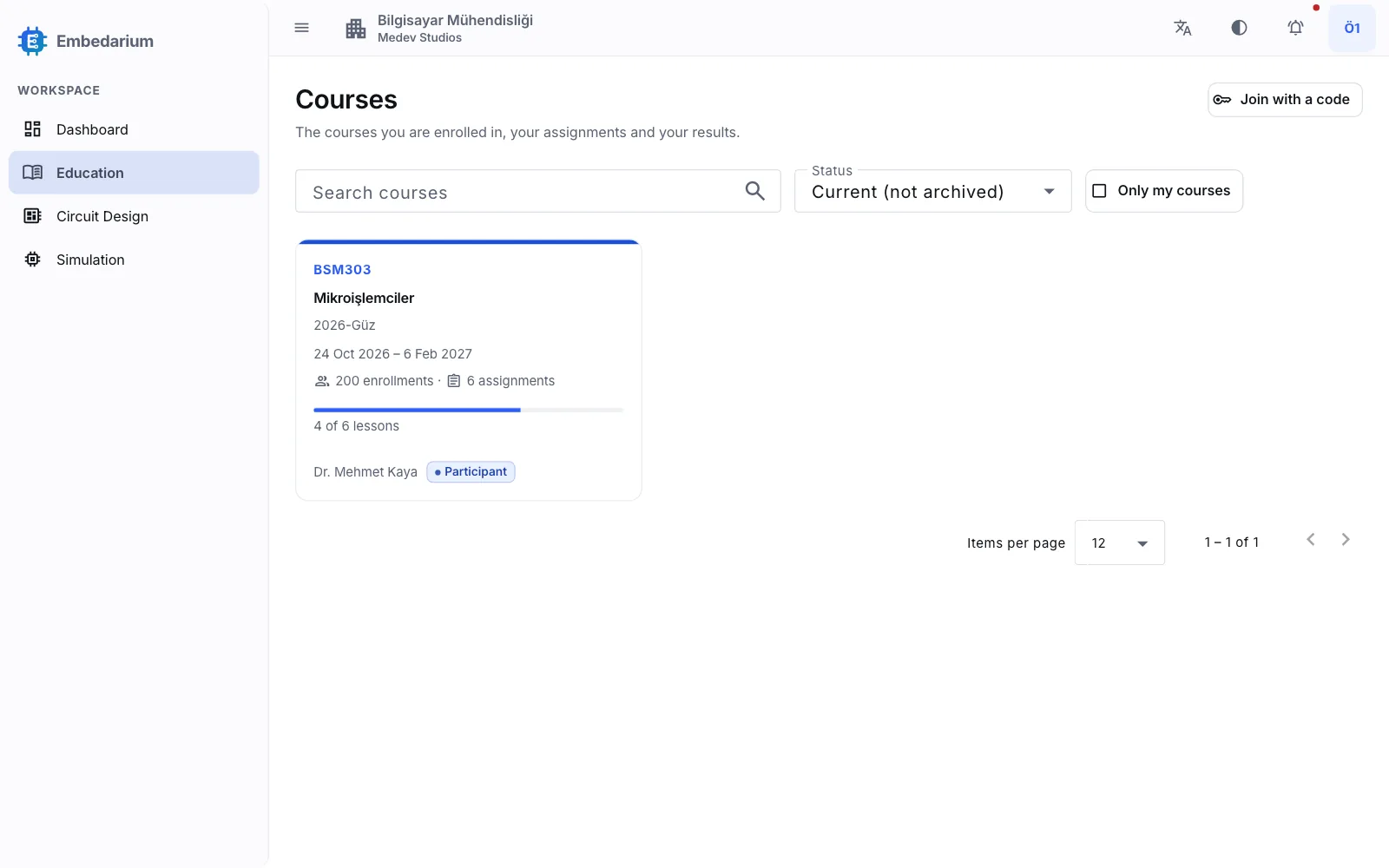
In Embedarium, courses live in the Education module. Select Education in the sidebar to list the courses you're enrolled in.
How do I join a course?#
There are four ways to enroll in a course:
- Your instructor enrolls you: by your email address or with a bulk list. If you don't have an account yet, an invitation email arrives first (see Getting started); when you accept it you're also enrolled in the course.
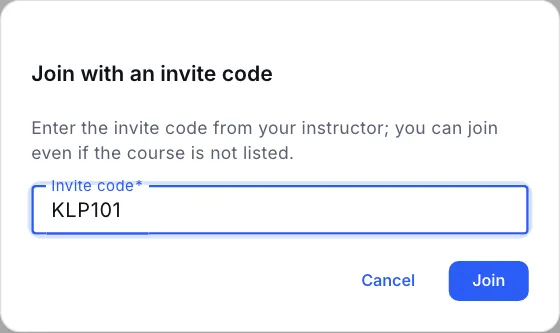
- With a join code: enter the code your instructor gave you with the Join with a code button. You can join with the code even if the course isn't listed.
- An open course: join from the page of a course that is open to everyone in your organization.
- From your LMS: if your organization has connected Embedarium to its LMS, opening Embedarium from the LMS course enrolls you automatically.
You can leave a course you joined yourself with Leave course on the course page. To leave a course your instructor enrolled you in, ask your instructor.
Note
In some organizations, joining a course requires a license seat. If you don't have one, your enrollment waits for a seat and opens when your organization's administrator gives you one. If the course doesn't open, contact your organization's administrator.
The course page#
Select a course to open its page. At the top are the course's code, term, status, dates, unit and instructor; the assignments are listed below.
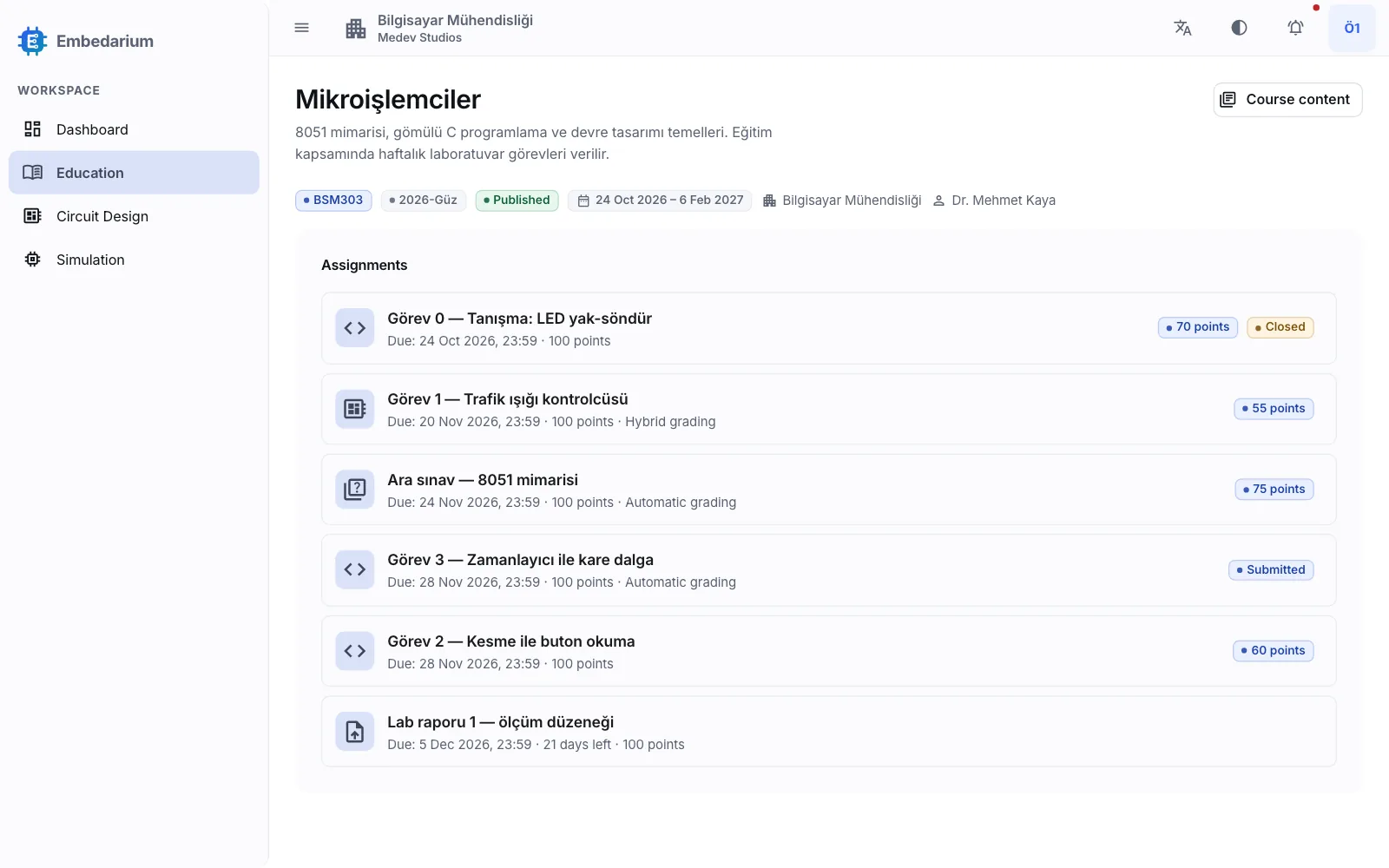
On each assignment's row:
- The icon shows the assignment type: code, circuit, quiz or file submission.
- The Due date, the maximum points and the grading method (automatic, manual or mixed).
- The badges on the right tell you your status: the points you got, Submitted (waiting to be graded) or Closed (the submission period has ended).
Following the course content#
The Course content button at the top right of the course page opens the lessons: documents, code examples, circuit examples, videos, links and announcements, arranged in weeks or sections.
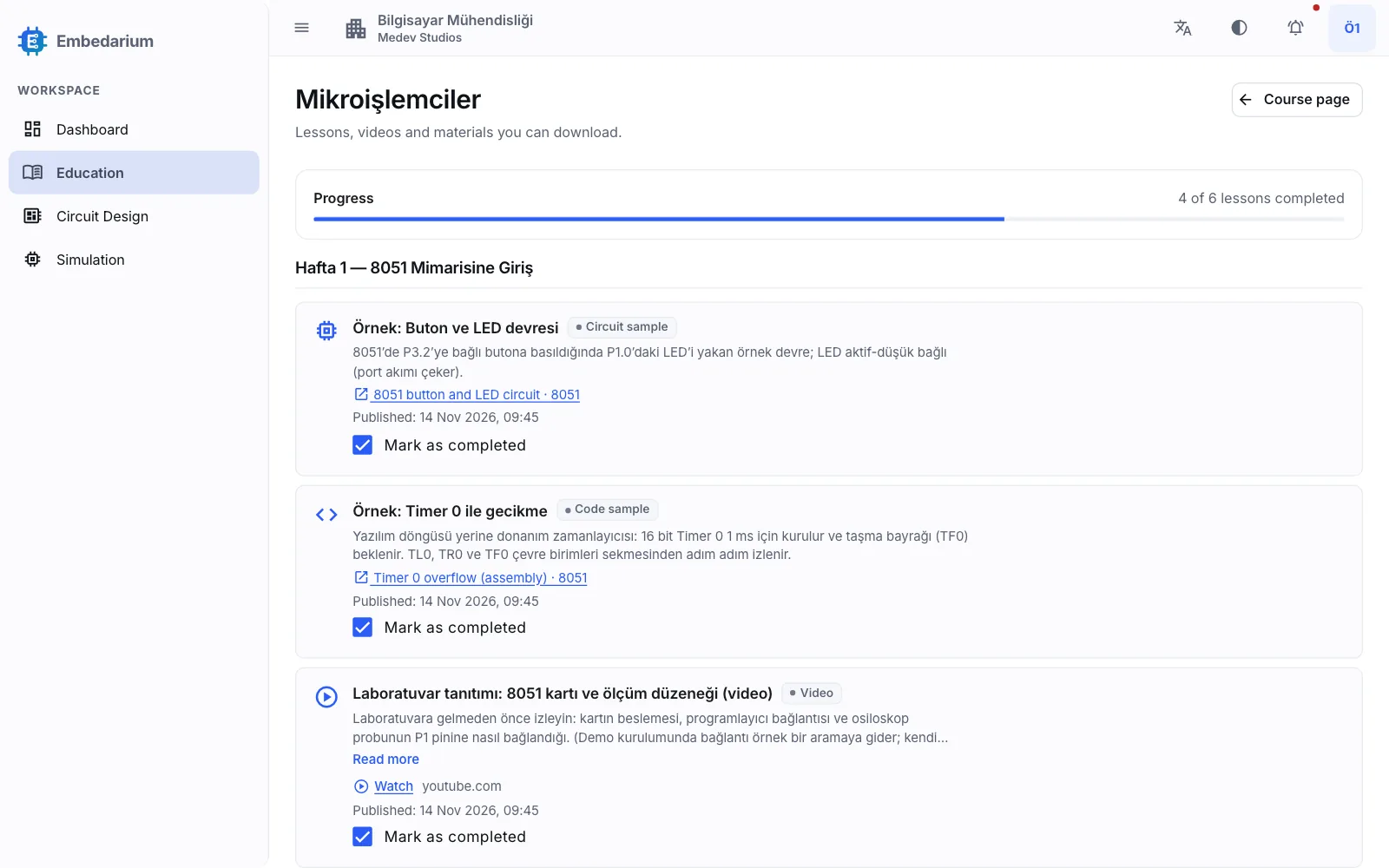
- Open and run code and circuit examples with a single click.
- When you finish a lesson, select Mark as completed; the progress bar at the top updates.
- When your instructor publishes an announcement, you get a notification and an email.
The assignment page#
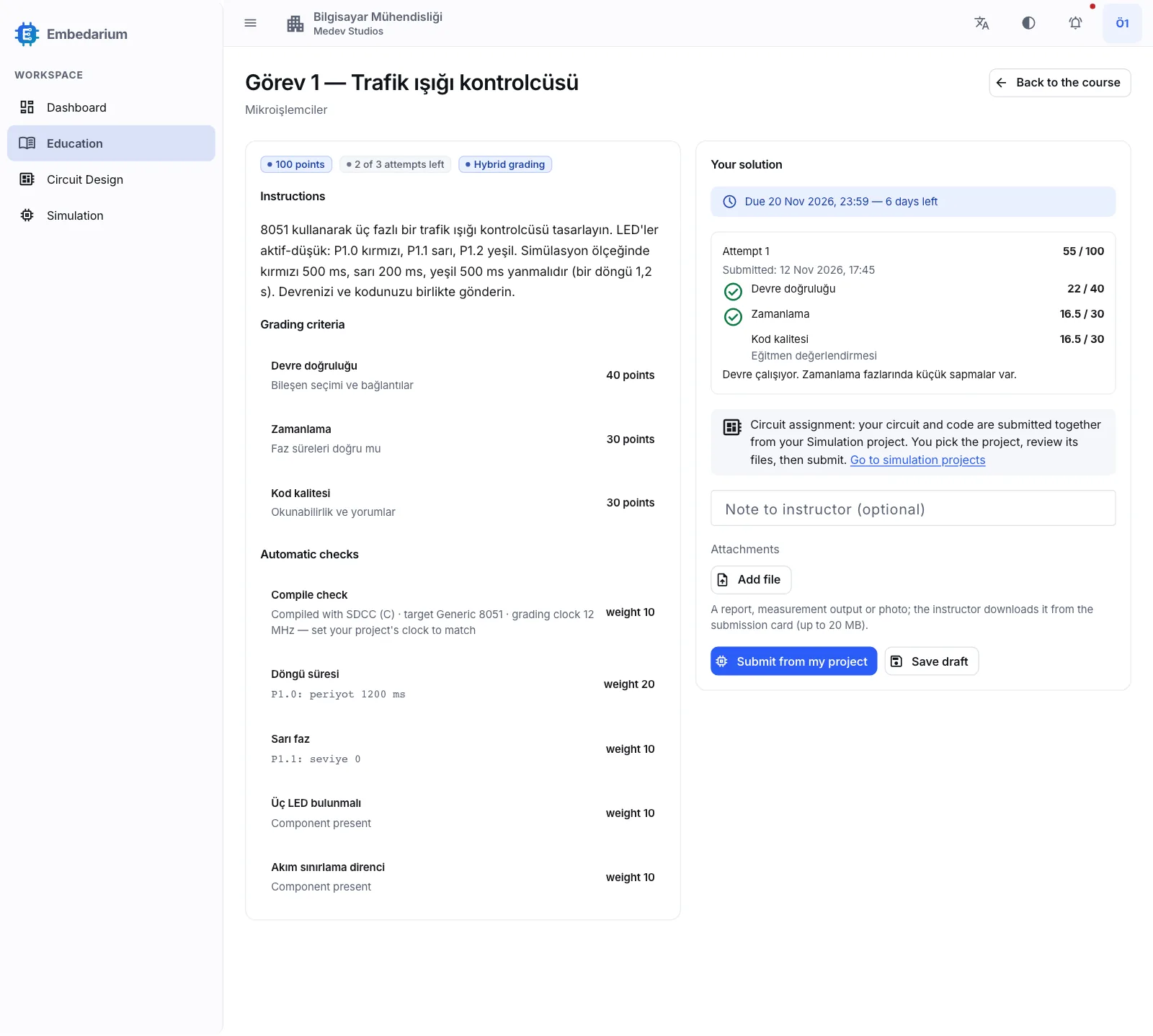
When you open an assignment, the instructions are on the left and the Your solution section on the right.
- Badges at the top: maximum points, attempts left and the grading method.
- Grading criteria: how the points are made up (for example circuit correctness 40, timing 30, code quality 30).
- Automatic checks: what your submission will be checked against automatically — build, waveform measurements, required parts — and the weight of each check. For hidden test cases only their number is shown.
- Due date: the deadline and the time left.
How do I submit an assignment?#
How you submit depends on the assignment type:
| Assignment type | How to submit |
|---|---|
| Code | Type your solution in the text area (a C assignment is built as main.c) or send your simulation project's files with Submit from my project. Add extra files if you like. |
| Circuit | Send the circuit and the code in your simulation project together with Submit from my project. You can add a note and extra files too. |
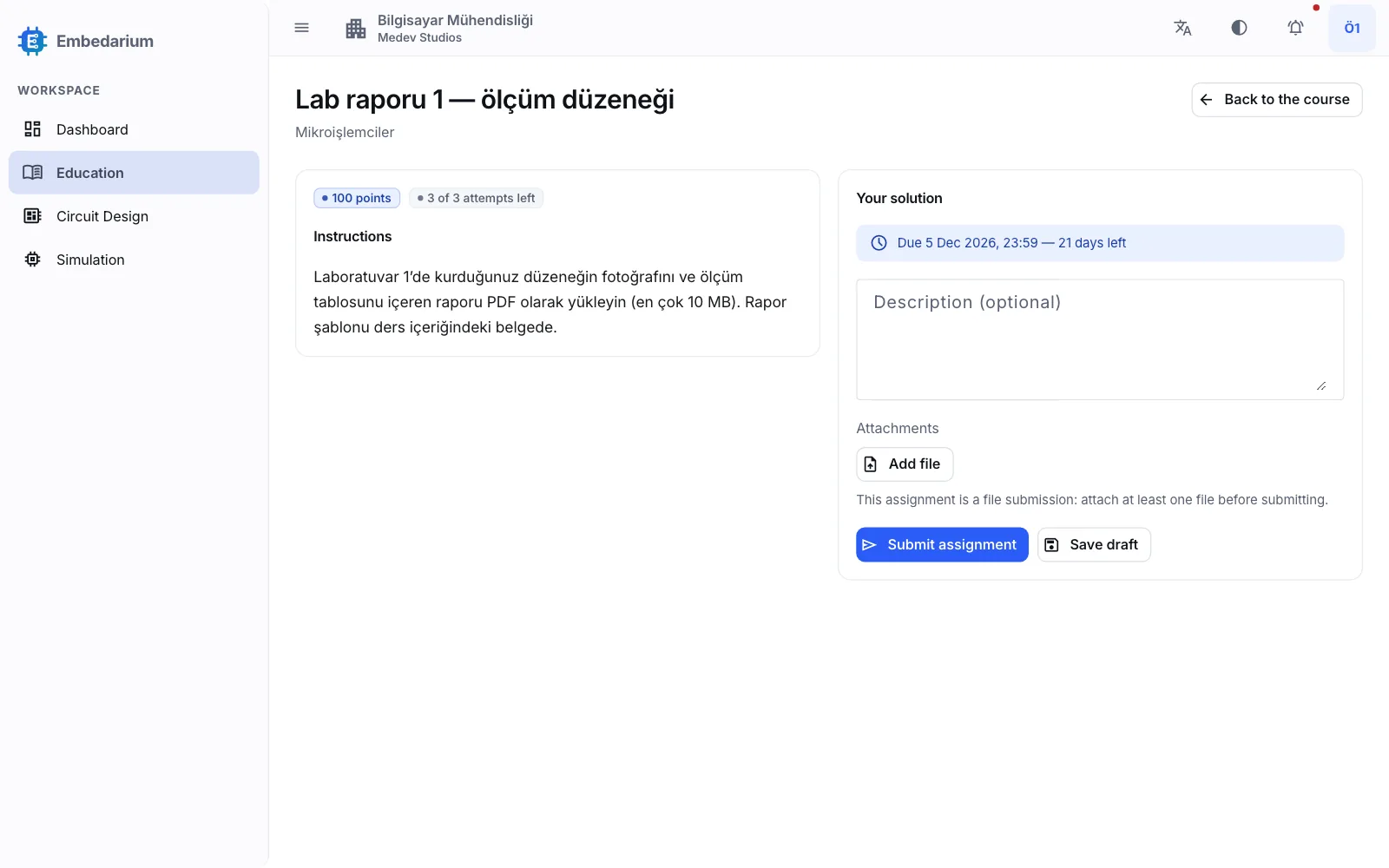
| File | Upload your report, measurement output or photo with Add file (up to 20 MB per file). |
| Quiz | Answer the questions on the page. |
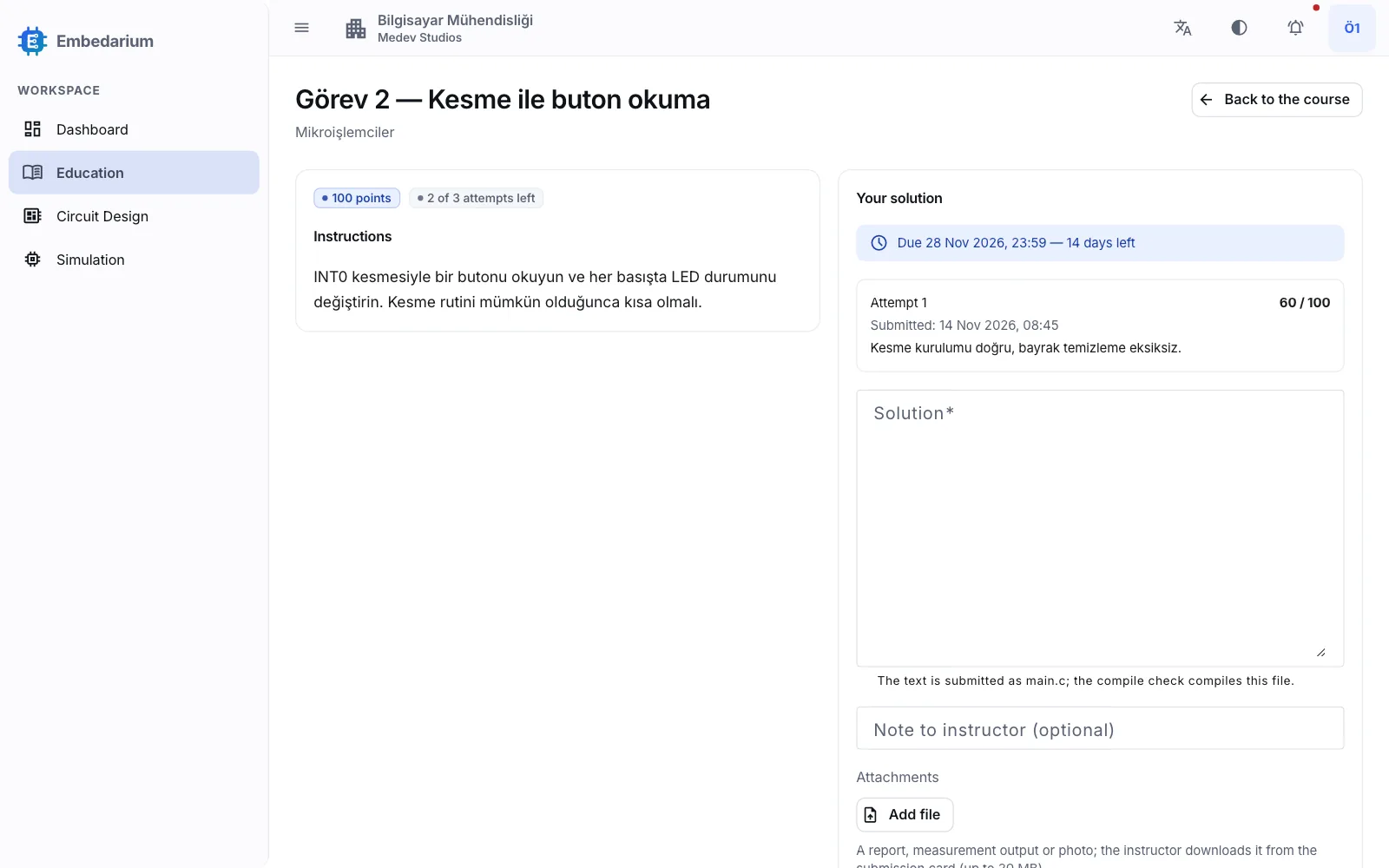
- Prepare your solution.
- Optionally write a Note to instructor and add extra files.
- Select Submit assignment (or Submit from my project). The files to be sent are listed before you hand them in.
Important
A submission can't be taken back and it uses one attempt. If you haven't finished, keep your solution with Save draft without using an attempt; when you reopen the page you carry on where you left off.
Submitting from the workspace#
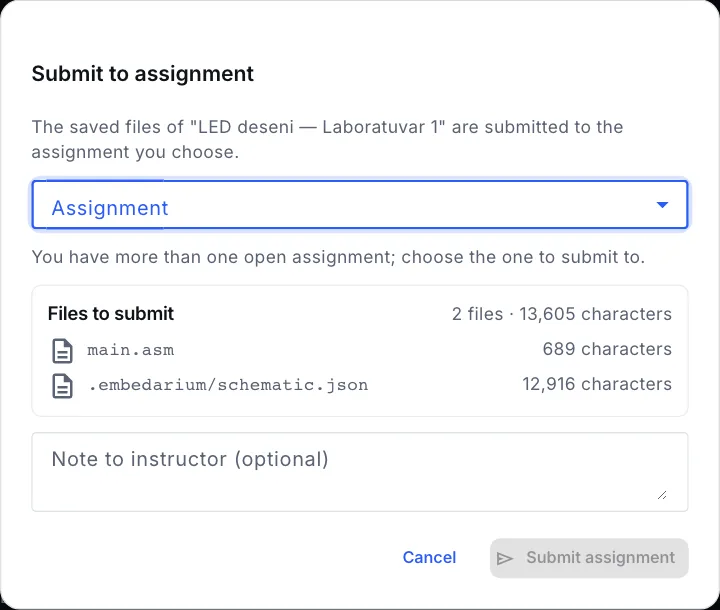
The Submit to assignment button on the simulation workspace toolbar hands in the project's saved files to the open assignment you choose. If you have more than one open assignment, you choose the assignment first; the files to be sent and their total size are listed.
Tip
Save before you submit: Submit to assignment sends the project's saved files. Your latest unsaved changes aren't included.
File submissions and quizzes#
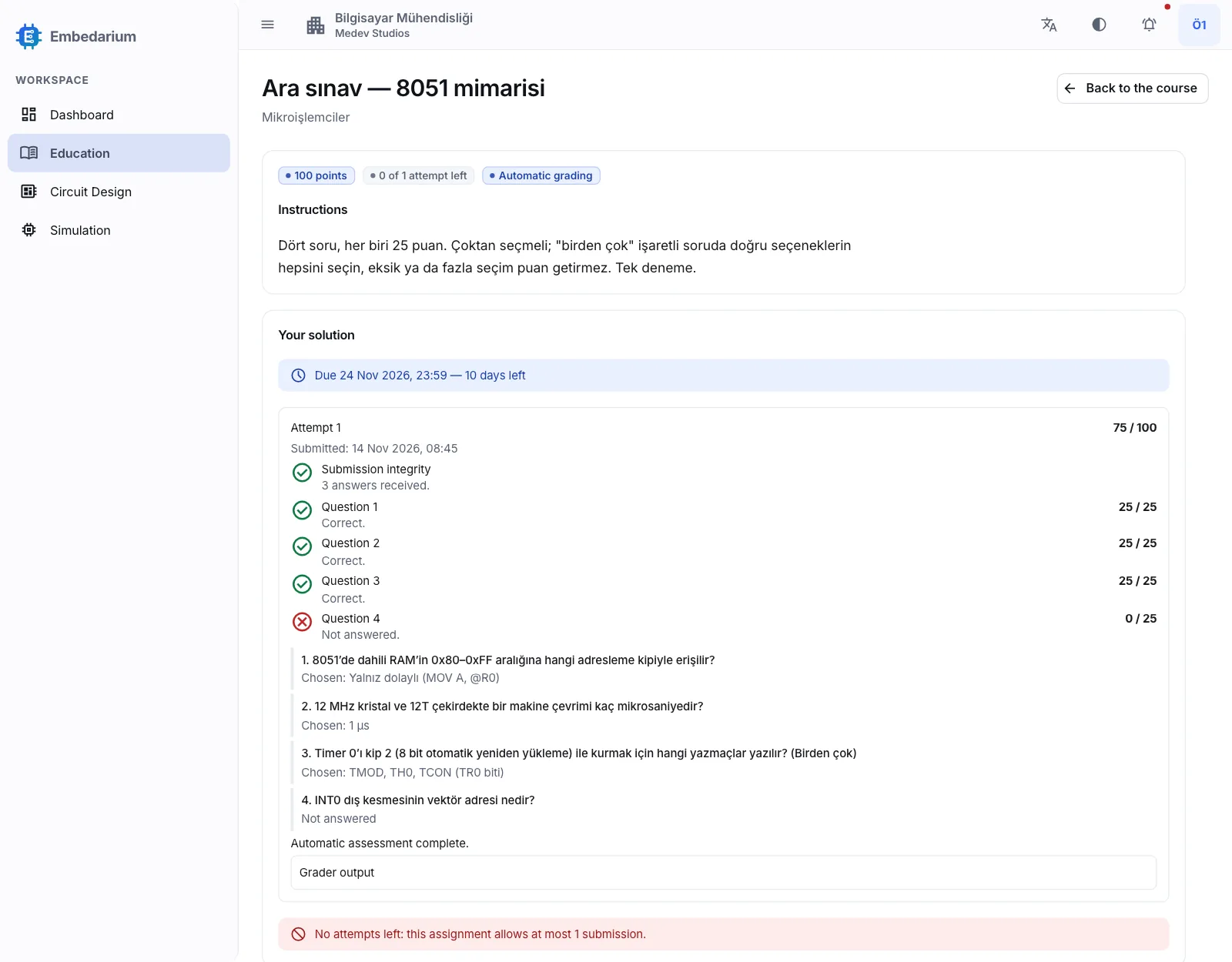
Quiz questions are multiple choice; for a question marked "multiple", you must select all the correct options. Quizzes are graded automatically and your result is shown question by question.
Due dates, late submission and extensions#
- The assignment page shows the due date and the time left; a reminder email arrives as the due date approaches (you can turn it off in your profile).
- If the instructor set a late submission period, you can still submit after the due date; the penalty shown on the assignment applies to late submissions. Without a late period, submissions aren't accepted after the due date.
- Your instructor can give you a personal extension; then the date on the assignment page is updated for you.
- To see due dates in your calendar: Calendar subscription.
Grades and feedback#
When grading is done, each of your attempts appears in the Your solution section with its points, the criteria and checks breakdown and the instructor's feedback. You get a notification when your grade is given; your latest grades are also listed on the dashboard.
- Automatic grading runs right after you submit; the result appears shortly.
- Manual grading appears when the instructor or an assistant grades it.
- If the instructor returns your submission for revision, you can submit again; the returned attempt doesn't count against your attempts.
Last updated:
Could not find what you need? Write to support — tell us the screen and what you expected to happen.