
Grading and the gradebook
Instructors and assistants
For instructors and assistants — reviewing and filtering submissions, reading and rerunning the automatic grading result, giving points and feedback, returning for revision, waiving the late penalty, individual extensions, the gradebook and CSV.
An assignment's submissions are collected on the assignment page, and all the course's points in the gradebook. The Grading queue card on your dashboard shows how many submissions are waiting in which course.
Reviewing submissions#
Open the assignment page. The Submissions list is on the right; the assignment's instructions and the Individual deadline extensions are on the left.
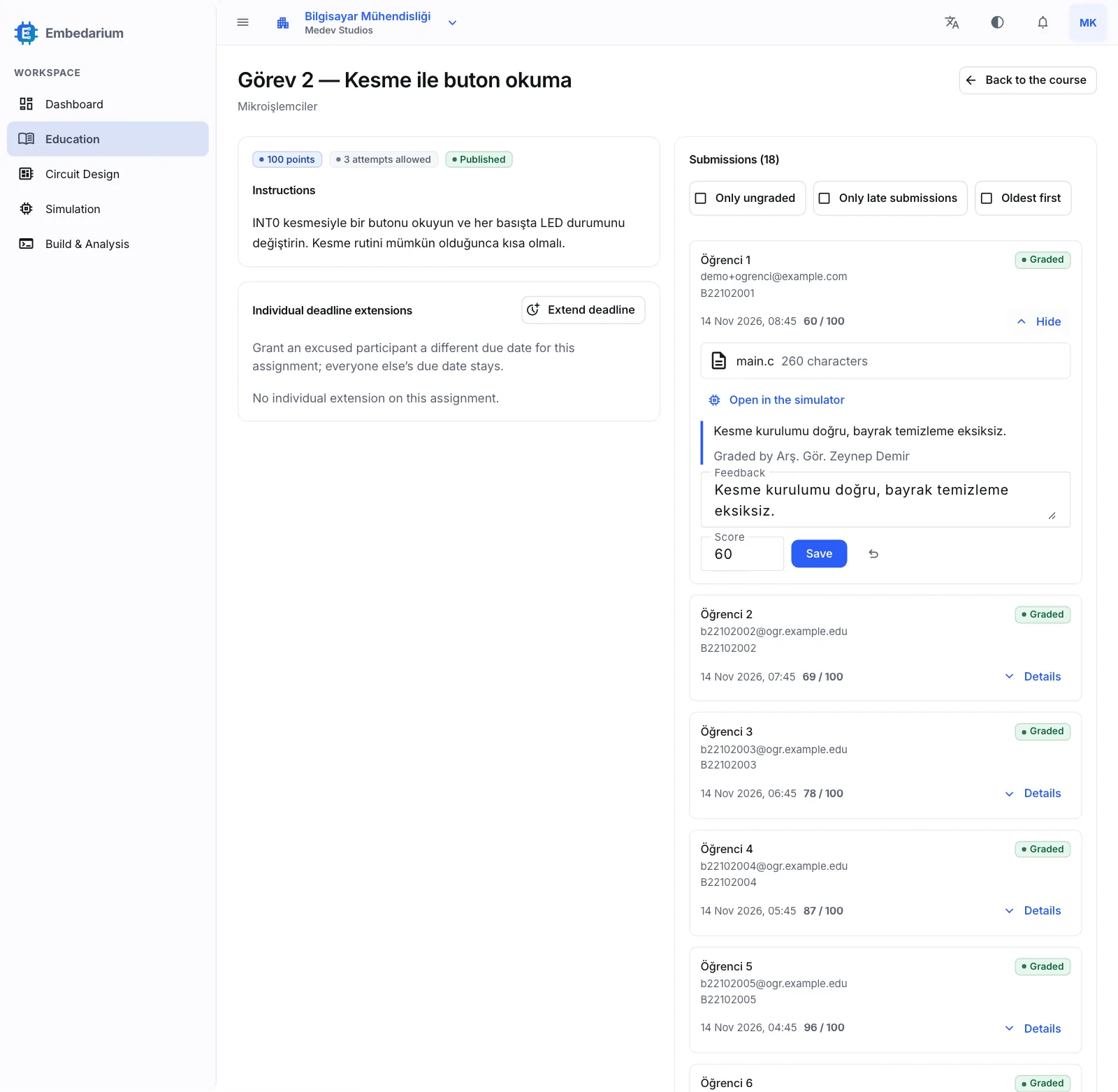
To narrow the list:
- Only ungraded — submissions without a grade.
- Only late submissions — those that came in after the due date.
- Oldest first — to start with the submission that has waited longest.
When there are many submissions, graded and returned cards start closed; the header shows the name, status and score, and Details opens the card.
On an open card:
- The files submitted (for example
main.c), the participant's note and attachments. - Open in the simulator — opens the submission in the simulation workspace; you can run the code and step through it.
- The automatic grading result (below), and the Feedback and Score fields.
Giving points and feedback#
- Open the submission's card.
- Write the Feedback and enter the Score.
- Select Save. The participant gets a notification; the score and feedback appear on their assignment page.
To correct a grade, change the same fields and save again.
Returning for revision#
If you want the participant to fix the submission and send it again, use Return for revision. The participant gets a "Revision requested" notification; the returned attempt doesn't count against their attempts and they can send a new one.
Waiving the late penalty#
Submissions that arrive after the due date get the assignment's late penalty. For a participant with a valid excuse, tick Waive the late penalty on the card; no penalty is deducted and the card shows "Late submission — penalty waived (excused)".
The automatic grading result#
For automatically or hybrid-graded assignments, the card lists each check with its result and points: submission integrity, the compile check, UART scenarios, waveform checks, netlist rules. Next to a failed check you see why (for example a build error and its line). Grader output opens the detailed log.
- A check that couldn't be measured (for example an unreadable expectation) falls to instructor grading; you enter the points for that criterion only, and the total is calculated together with the measured checks.
- To rerun automatic grading for a submission, use the Re-grade button on the card — for example after you've fixed the wording of a check.
Individual extensions#
You can give a participant with a valid excuse extra time without changing everyone else's date:
- On the assignment page, select Extend deadline in the Individual deadline extensions card.
- Choose the Participant, enter the New due date (after the assignment's due date) and optionally Late submission until.
- You can write a Reason; only the course team sees it.
- Select Grant extension.
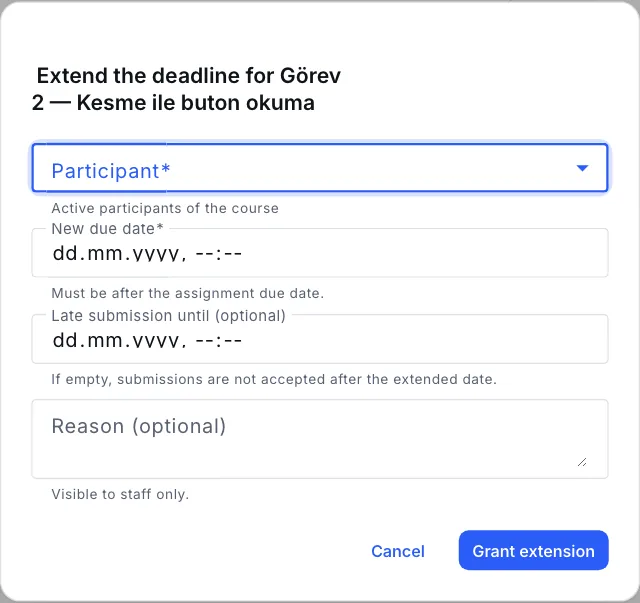
The date on the participant's assignment page and their calendar subscription update automatically.
The gradebook#
The course page's Gradebook shows every assignment's points per participant.
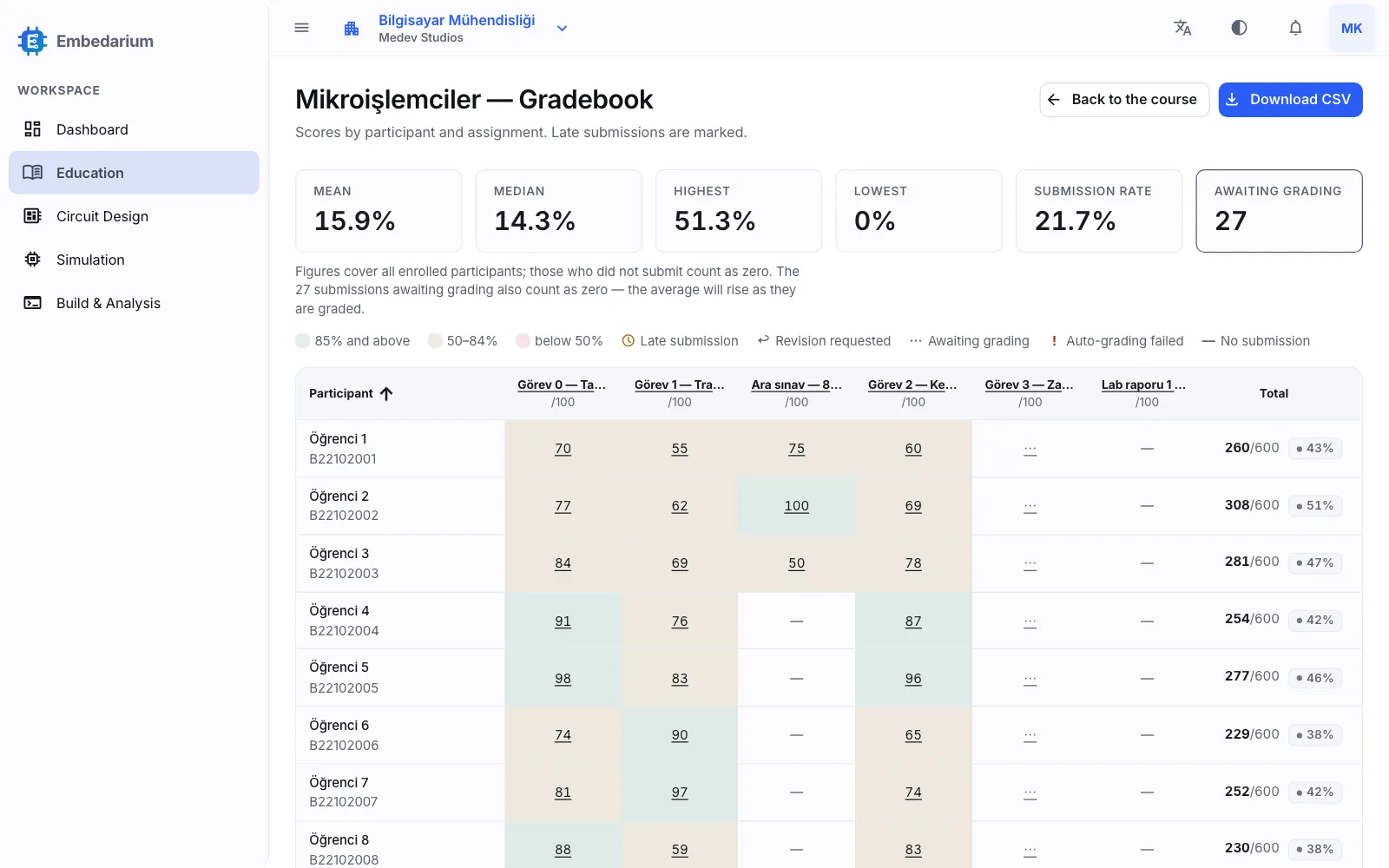
- Colors show the score band (the thresholds are in the legend above the table).
- Markers: ↩ revision requested, ⋯ awaiting grading, ! auto-grading failed, — no submission; late submissions are marked too.
- Clicking a cell opens that participant's submission for that assignment.
- Sort by participant name or total score from the column headers.
- Under each assignment are the lowest, highest, mean and median scores and the submission rate; participants who didn't submit count as zero.
Download CSV downloads the table as a file that opens in Excel (in the order shown). The export is recorded in the organization's audit log.
Note
Exporting the gradebook is an instructor right; assistants see the table but can't download it.
Last updated:
Could not find what you need? Write to support — tell us the screen and what you expected to happen.