
Licenses and seats
Organization administrators
For organization administrators — license, allocation and seat concepts; the Licenses screen; assigning seats to people one by one and in bulk, taking seats back; allocating seats to sub-units; the usage report; license expiry; the locked module screen, free trials and access requests.
Embedarium's modules (Education, Simulation, Circuit Design, Build & Analysis) and add-ons (processor packs, SPICE analysis, autorouting…; AI assistance is coming later) are unlocked by licenses. Licensing has three levels:
| Level | What it means | Who does it |
|---|---|---|
| License | A module your organization has bought: plan, number of seats, end date | The Embedarium team |
| Allocation | Delegating part of a license's seats to a sub-unit | Organization admin |
| Seat | A person's right to use the module | Organization admin or department manager |
With per-seat licenses, using a module takes both a role and a seat: a person with the role but no seat sees the module locked.
The Licenses screen#
Licenses shows your organization's licenses, seat usage and allocations to sub-units.
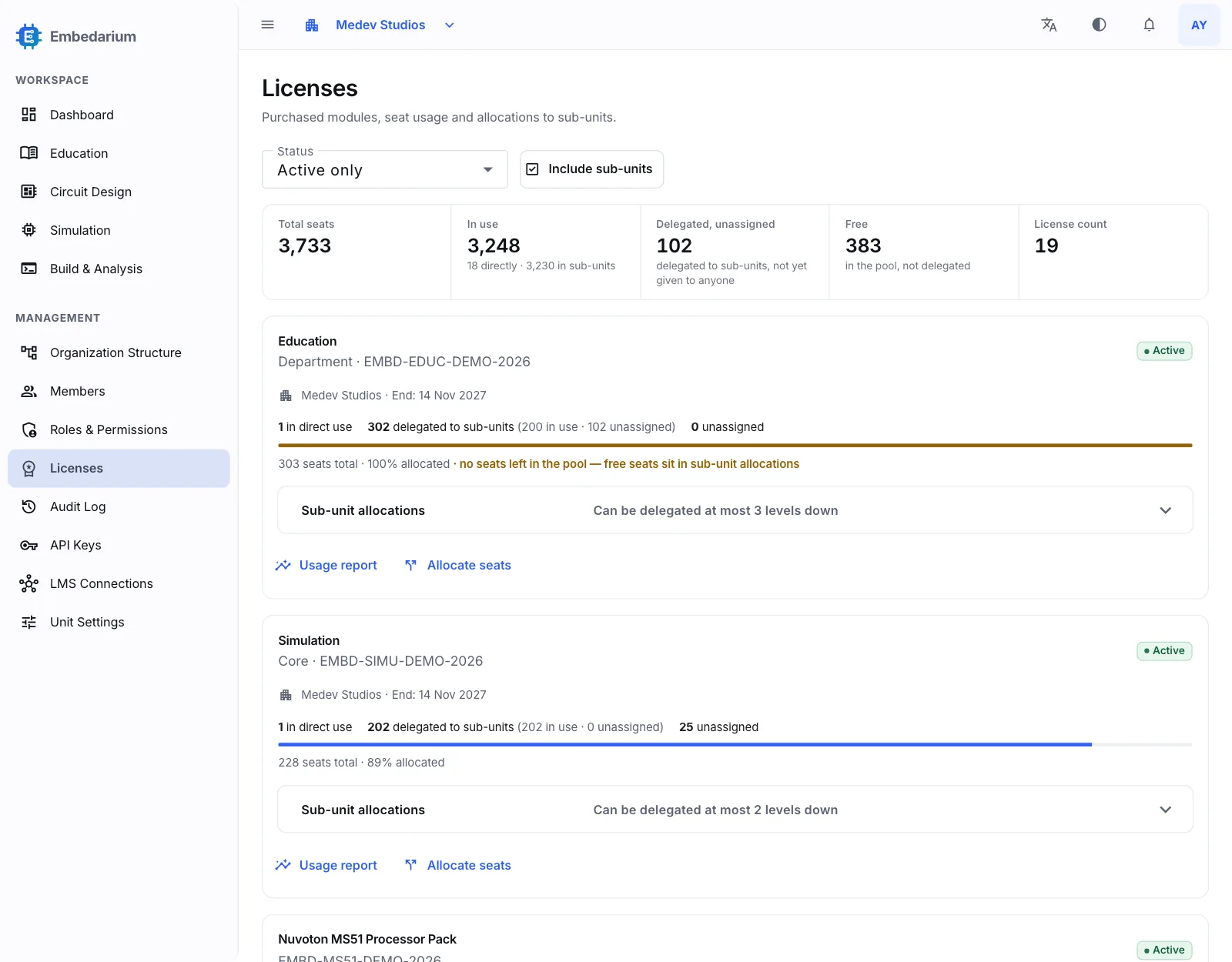
The summary at the top:
| Box | Meaning |
|---|---|
| Total seats | The seats of all licenses |
| In use | Seats given to people (directly and in sub-units) |
| Delegated, unassigned | Seats delegated to sub-units but not yet given to anyone |
| Free | Seats in the pool, not delegated to anyone |
Each license card shows the product and plan name, the license key, its status, the unit that owns it and the end date. The line below says where the seats are: how many are in direct use, how many were delegated to sub-units and how many are free. If no seats are left in the pool, the card says so.
- Status filter: Active only, Active and suspended, Ended, All.
- Include sub-units: licenses owned by or allocated to sub-units are listed too.
Seat models#
- Per seat: a set number of people use it; each person is given a seat. Most licenses work this way.
- Site license: covers everyone in the unit (and in its sub-units, if the license is set up that way); no seats are assigned. The card says "Site license" and shows the contract capacity if there is one.
- Unlimited: there is no seat limit.
Assigning seats to people#
Seats are given from the Members screen.
- Select Edit seats on the person's row; if they have no seats yet, the button is called Assign seat.
- The License seats panel lists your organization's licenses grouped by module; a checked box means the person has a seat on that license. Check the licenses you want to give and uncheck the ones you want to take back. Each row shows how many free seats are left; a license with no free seats can't be checked. Select all checks every license that still has free seats.
- The bottom of the panel says what will change (for example "Seats on 3 licenses will be assigned" and "1 seat will be revoked"). Select Save.
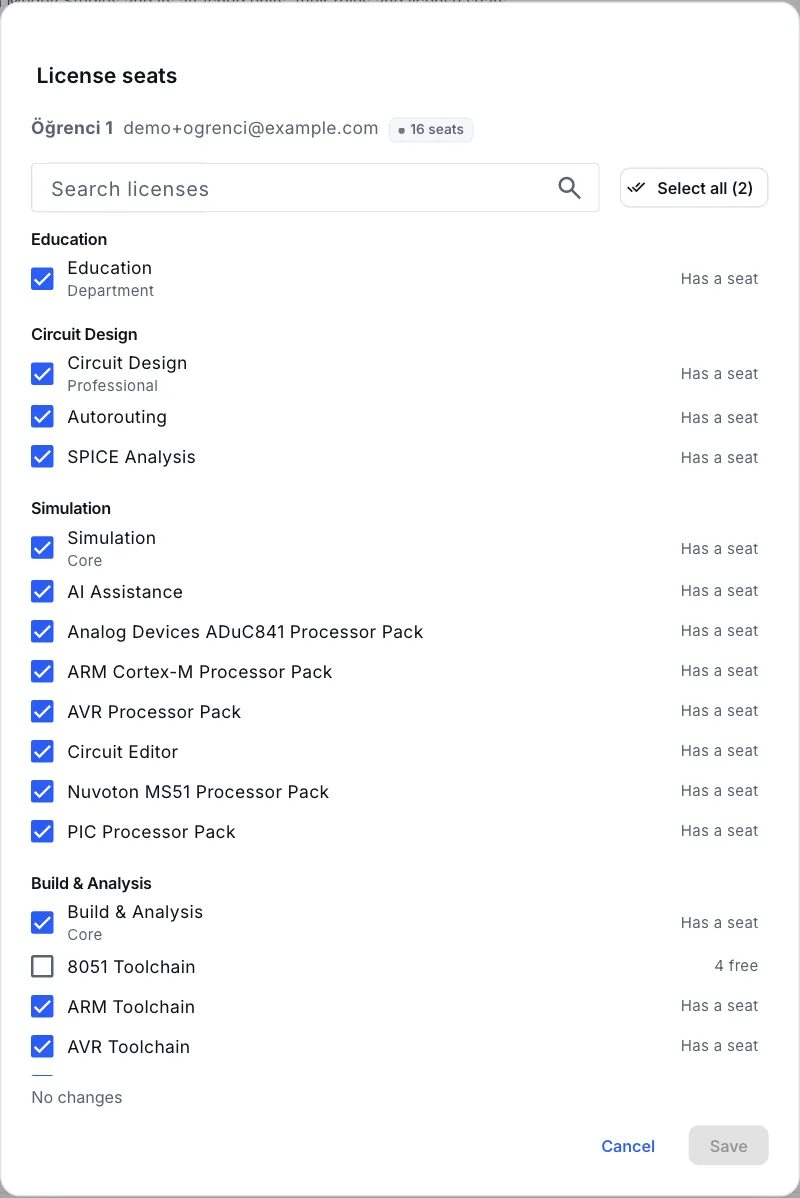
A revoked seat ends the person's access to that module immediately, and the seat becomes free on the license. The person gets a single notification saying how many seats were assigned or revoked.
A person's seats appear as tags on their row; if there are many, +N more expands them.
Assigning seats to several people#
- Tick people in the member list (the box in the header selects everyone on the page).
- In the bar that appears at the bottom of the screen, select Assign seat.
- In the Assign seats to selected members panel, check the licenses you want to give and select Assign seats. You can give several licenses at once.
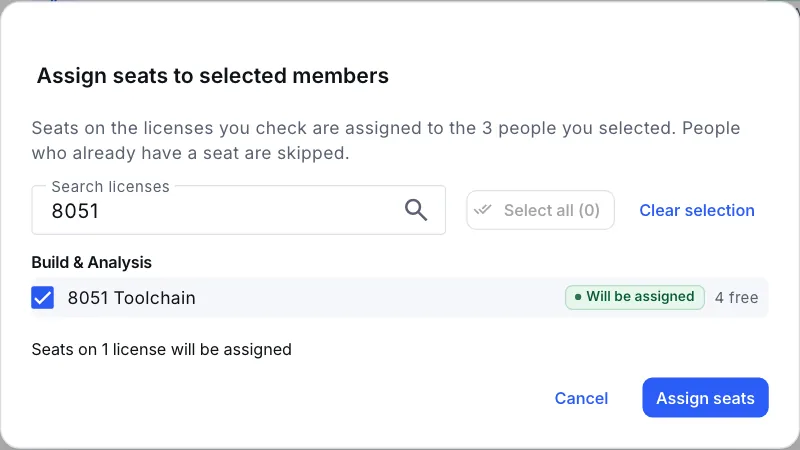
Each row says how many of the selected people already hold that license; they're skipped. A license that everyone selected already has can't be checked and says "Everyone selected already has it". If there are many licenses, narrow the list with the Search licenses field in the panel. If there aren't enough free seats, the row warns "N free · M needed", and saving assigns as many as the license allows. The result is summed up in one message: how many seats were assigned, how many people already had one, and on which licenses there weren't enough seats.
Tip
When an instructor enrolls participants in a course and there aren't enough seats, the enrollment waits for a seat. When you give these people seats, their pending course enrollments open automatically; you don't need to do anything else. Your dashboard shows the number of enrollments waiting for a seat.
Where a seat is valid#
A license can be used in a unit when the unit owns the license, when an allocation was made to the unit, or when a license tagged Passes to sub-units on its card comes from a parent unit. A seat is valid where it came from:
- A seat from the organization's pool is valid in every unit the license can be used in.
- A seat from an allocation to a sub-unit is valid in that unit; it doesn't work in sibling units.
If the license can't be used in any unit the person can enter, the seat isn't given and the screen says why ("… belong to units this license does not reach — allocate seats to the unit first"). This way a seat that couldn't be used isn't wasted.
Allocating seats to sub-units#
In large organizations you can divide the seats among departments and let each department manage its own. For example, of a 300-seat Education license you give 200 to Computer Engineering and 100 to Electrical and Electronics Engineering.
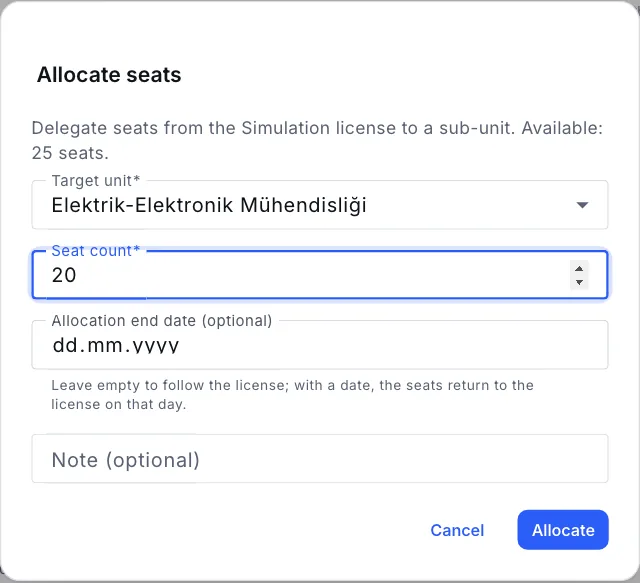
- On the license card, select Allocate seats.
- Choose the Target unit.
- Enter the Seat count. The dialog shows how many seats are available. If the unit already has an allocation, the number you enter becomes the allocation's new total.
- Optionally set an Allocation end date. If left empty, the allocation lasts as long as the license and is extended when the license is renewed. With a date, the seats return to the license on that day.
- Optionally write a Note (for example "Fall 2026 term") and select Allocate.
- A license can only be delegated to units below it; the card says Can be delegated at most N levels down.
- An allocation reaches only its target unit; if a team below the unit should use it too, make a separate allocation to that team (unless the license is set up as Passes to sub-units).
- If there are no free seats in the pool, reduce another allocation first.
- Allocations are listed in the card's Sub-unit allocations section: unit, seats, usage, end date and who made it. Edit allocation and Revoke allocation are there too.
Important
When you revoke an allocation, the seats delegated to the unit return to the pool and the people using them lose access immediately. The dialog tells you beforehand how many people will be affected.
The usage report#
Usage report on a license card shows how the seats are used:
- Assigned seats: what share of the seats has been given to people.
- Unused for 30 days: the number of people with a seat who haven't signed in for 30 days.
- Breakdown by unit: seats delegated to, used in and active in the last 30 days for each unit.
- Seats unused for 30 days: a list of people ("Has never signed in" or how many days since they last signed in).
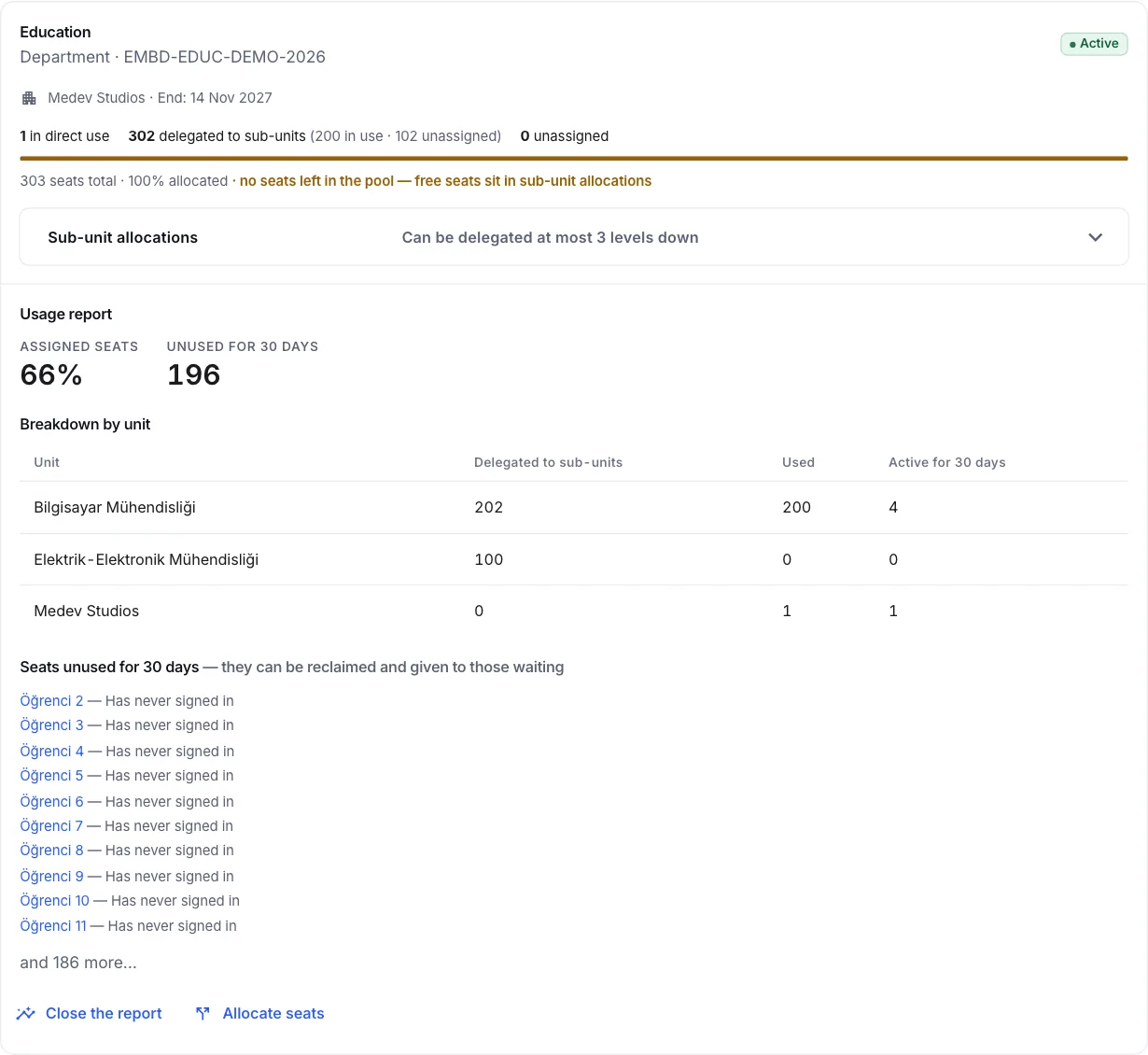
Unused seats aren't taken back automatically — a student coming back from leave should find their seat. Taking them back and giving them to people who are waiting is your decision.
License expiry#
- 30, 7 and 1 day before the end date, the organization owner and the organization admins get an email; the card shows the days left.
- After the end date, access continues fully during the license's grace period; when that ends too, the module closes.
- To renew a license, add seats or buy a new module, contact the Embedarium team: Contact.
When a license is renewed, allocations without an end date are extended automatically.
The locked module screen#
When someone opens a module they can't use, the locked module screen appears. It offers the next step depending on the situation and the person's role:
| Situation | An administrator sees | A member sees |
|---|---|---|
| The organization has the license, the person has no seat | Assign me a seat and Manage seats | Ask an administrator — the request goes to the administrators who can assign seats, by notification and email |
| The organization has no license | A free trial (if offered) and Request from Embedarium | Ask an administrator |
| The module isn't released yet | Nothing to do; it opens automatically when ready | The same |
Free trial#
If your organization doesn't use a module yet, an organization admin can start a free trial from the locked module screen:
- The trial opens for the whole organization, so it's started from the organization's top unit.
- The length and number of seats are shown on the screen; no payment details are asked for. The person who starts it is given a seat right away.
- The trial ends by itself; nothing is charged.
- Each module can be tried once per organization. If the trial has been used, ask the Embedarium team to continue.
Last updated:
Could not find what you need? Write to support — tell us the screen and what you expected to happen.