
Members, invitations and roles
Organization administrators
For organization administrators — the member list, searching and filtering, exporting to CSV; single and bulk invitations, pending invitations; assigning roles, inherited roles and time-limited roles; system roles, custom roles, effective permissions; suspending and removing memberships and transferring organization ownership.
People join your organization by invitation and get their permissions from roles. A person can be a member of several units; their roles apply in the unit where they're assigned (and, if you choose, in its sub-units). To use the modules they also need a license seat (see Licenses and seats).
The member list#
The Members screen lists your working unit's members with their roles, license seats, status and last activity.
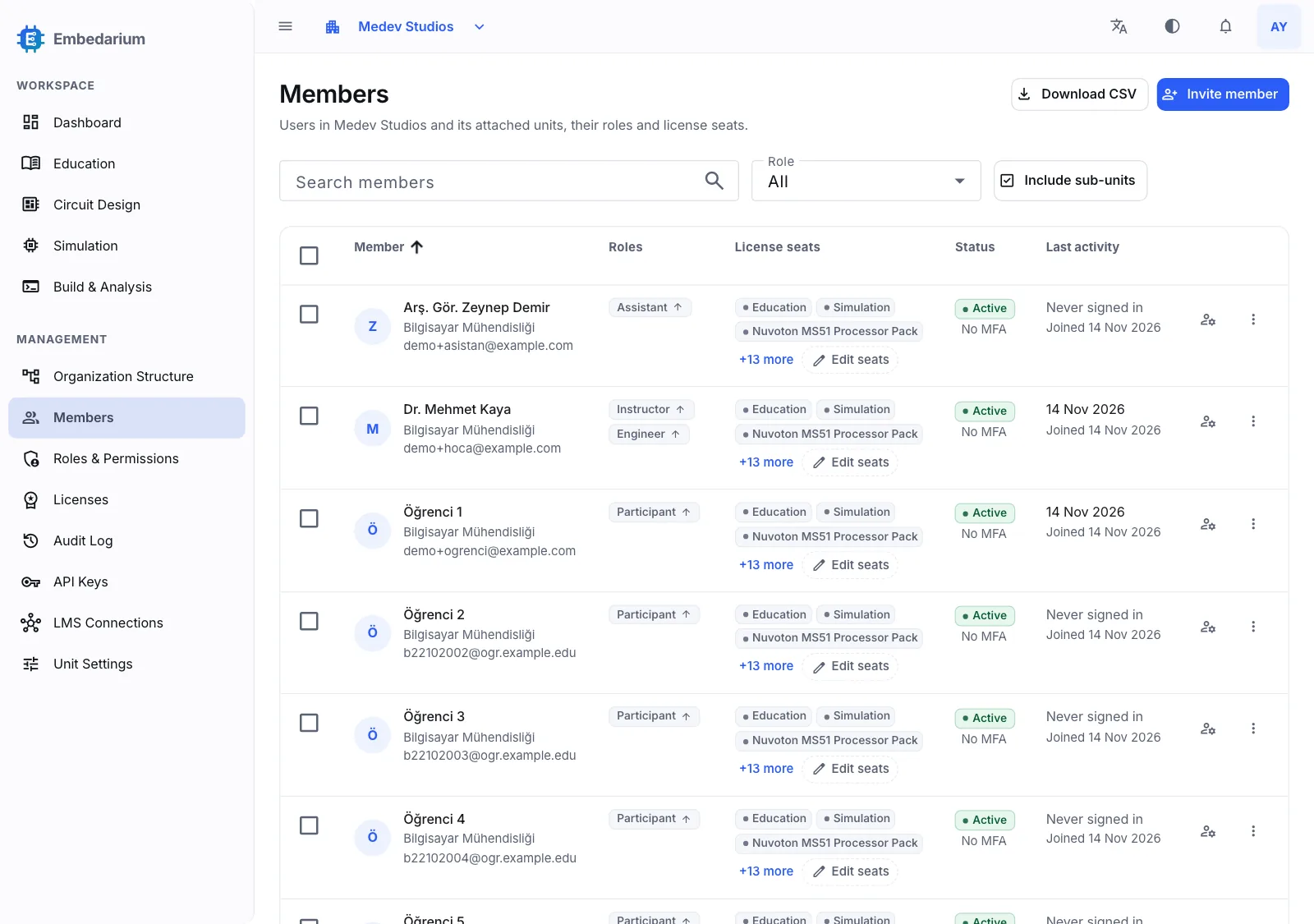
- Find people by name or email with Search members; narrow the list to one role with the Role filter.
- With Include sub-units ticked, members of sub-units are listed too; the row shows the person's unit.
- Sort by name or last activity from the column headers. Sorting by longest-inactive first is the quickest way to find unused accounts.
- The Status column shows the membership's status (Active, Suspended…) and whether two-factor authentication is on (MFA on / No MFA). The Last activity column shows the last sign-in and the joining date; someone who has never signed in shows Never signed in.
- The ↑ marker next to a role means it was assigned in a parent unit (inherited).
Download CSV downloads the list with the unit, search, role, sub-unit scope and order shown on the screen, across all pages (up to 20,000 members).
Inviting members#
- Select Invite member.
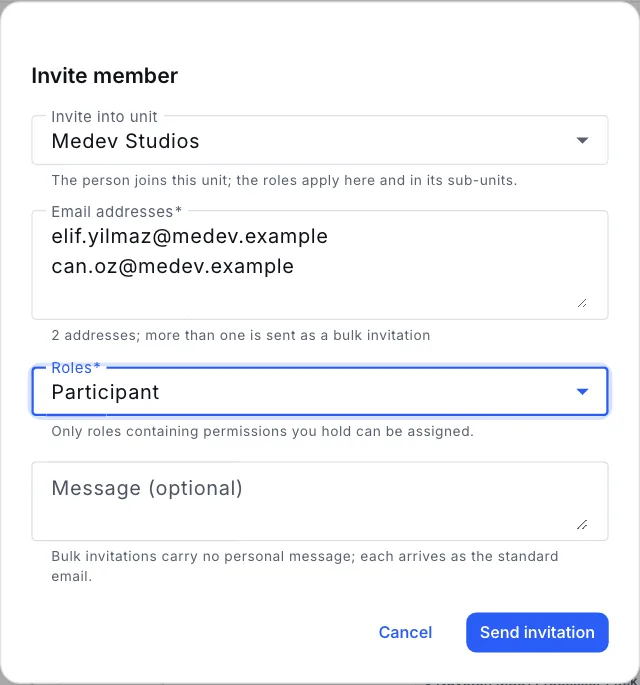
- Choose the unit in Invite into unit. The person becomes a member of this unit; the roles you give apply here and in its sub-units.
- Type one or more addresses in Email addresses — one per line or separated by commas. More than one address is sent as a bulk invitation.
- Choose the Roles (at least one).
- Optionally add a Message (optional) and select Send invitation.
The invited person gets an email. Without an account they create one from the link; with an account they sign in and accept the invitation (see Opening your account from an invitation email).
- A single invitation is valid for 7 days, a bulk invitation for 14 days.
- Bulk invitations carry no personal message; each arrives as the standard email.
- Only roles containing permissions you hold can be assigned.
- If allowed domains are set in the unit settings, invitations can only go to those addresses (see Allowed email domains).
Pending invitations#
Invitations that haven't been accepted are listed above the member list under Pending invitations, with the person who sent them, the unit and the expiry date:
- Resend invitation — if the email didn't arrive.
- Invite again — renews an expired invitation with the same contents (roles, message, course enrollments).
- Revoke invitation — the link in the email stops working.
Tip
To enroll a course's students you can also send the invitations from the instructor's Bulk enrollment screen: people without an account in the organization get an organization invitation and are enrolled in the course when they accept it (see Enrolling participants).
Assigning roles#
Change a member's roles with the Edit roles button (the person-and-gear icon) on their row. The dialog edits the roles in one unit, named at the top next to the person: your working unit, or the unit you opened the list for from Organization Structure. To change a role the person holds in a sub-unit, switch to that unit first.
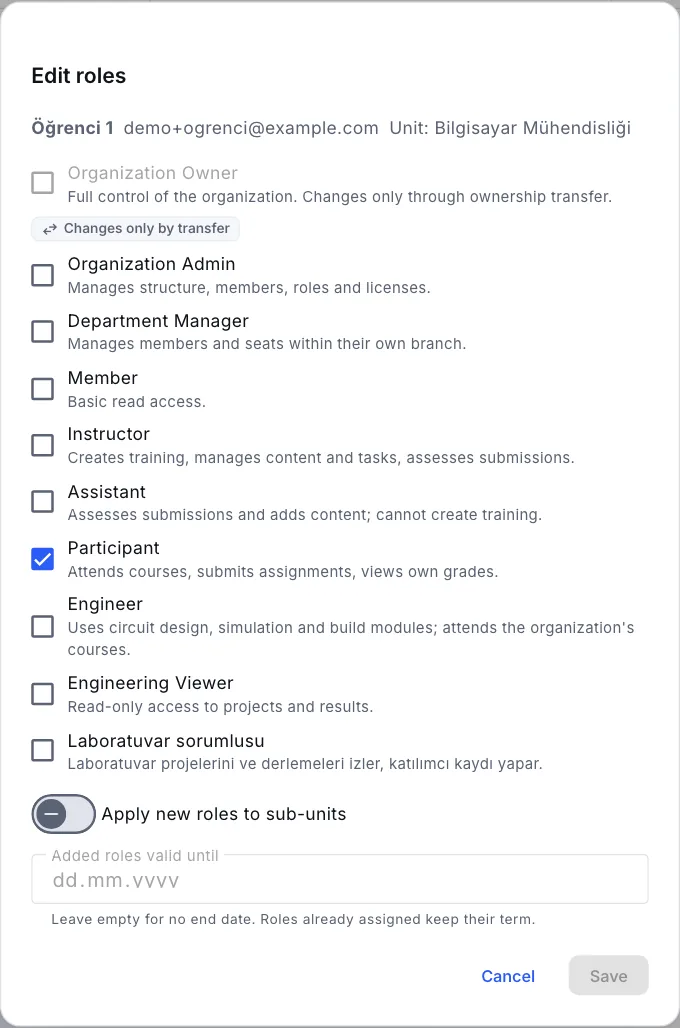
- Tick the roles you want to give and untick the ones you want to remove.
- With Apply new roles to sub-units on, the added roles also apply in the units below this one.
- If you're giving temporary access, enter an end date in Added roles valid until. Leave it empty for no end date; roles already assigned keep their term.
- Select Save. The changes are applied in one go.
Two kinds of role can't be changed in the dialog:
- Roles inherited from a parent unit ("Inherited from …"): change them in that unit.
- Organization Owner: changes only through an ownership transfer (below).
System roles#
System roles are defined by Embedarium and can't be changed. A department manager can also create sub-units.
| Role | What it does |
|---|---|
| Organization Owner | Full control of the organization. Changes only through ownership transfer. |
| Organization Admin | Manages structure, members, roles and licenses. |
| Department Manager | Manages members and seats within their own branch. |
| Member | Basic read access. |
| Instructor | Creates training, manages content and tasks, assesses submissions. |
| Assistant | Assesses submissions and adds content; cannot create training. |
| Participant | Attends courses, submits assignments, views own grades. |
| Engineer | Uses circuit design, simulation and build modules; attends the organization's courses. |
| Engineering Viewer | Read-only access to projects and results. |
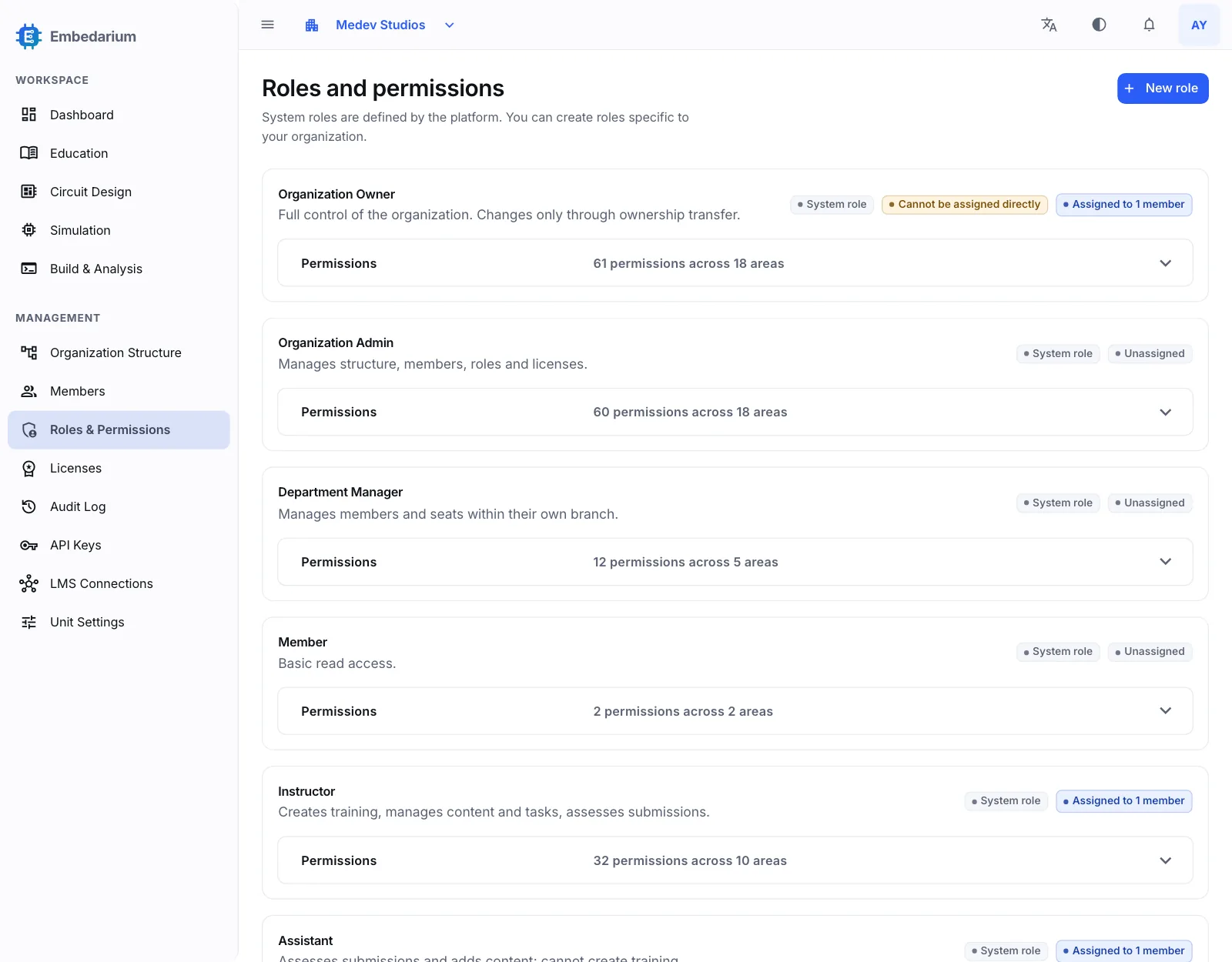
The Roles & Permissions screen shows how many permissions across how many areas each role has and how many members it is assigned to; expand the Permissions row to see the full list.
Creating a custom role#
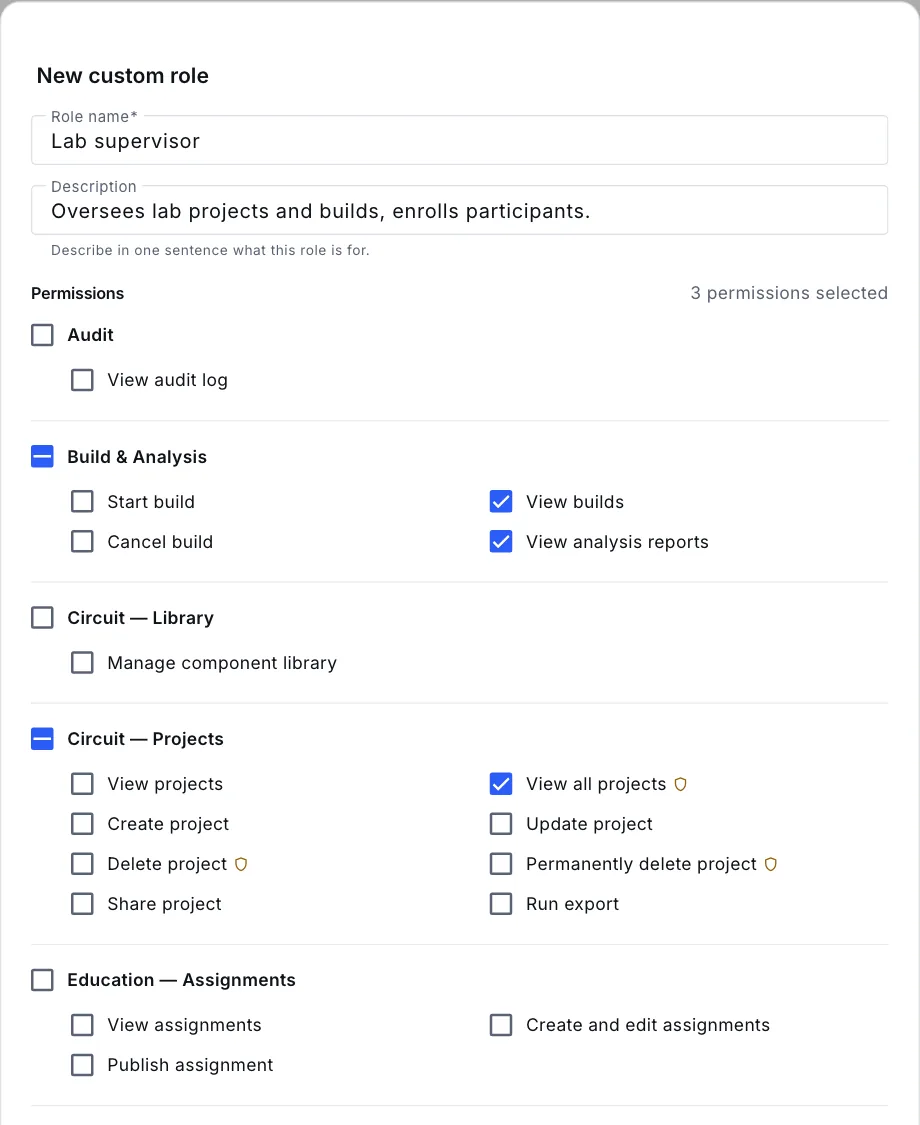
If the system roles don't fit your needs, define a role for your organization — for example a Lab supervisor who oversees lab projects but can't create courses.
- On the Roles & Permissions screen, select New role.
- Type the Role name and a one-sentence Description.
- Choose the role's permissions from the Permissions list. Permissions are grouped by area (Build & Analysis, Circuit — Projects, Education — Submissions…); a group's box selects every permission in that area. The number selected is shown at the top.
- Select Save. The role appears in members' Edit roles dialog.
- You can only add permissions you hold to a role.
- Permissions marked with a shield are sensitive (for example View all projects, Delete project); assignments of roles containing them are written to the audit log.
- If a permission needs a module's license, the role doesn't grant it without that license.
- You can edit or delete a custom role later. Deletion is rejected while members are still assigned to it; remove the role from them first.
A member's effective permissions#
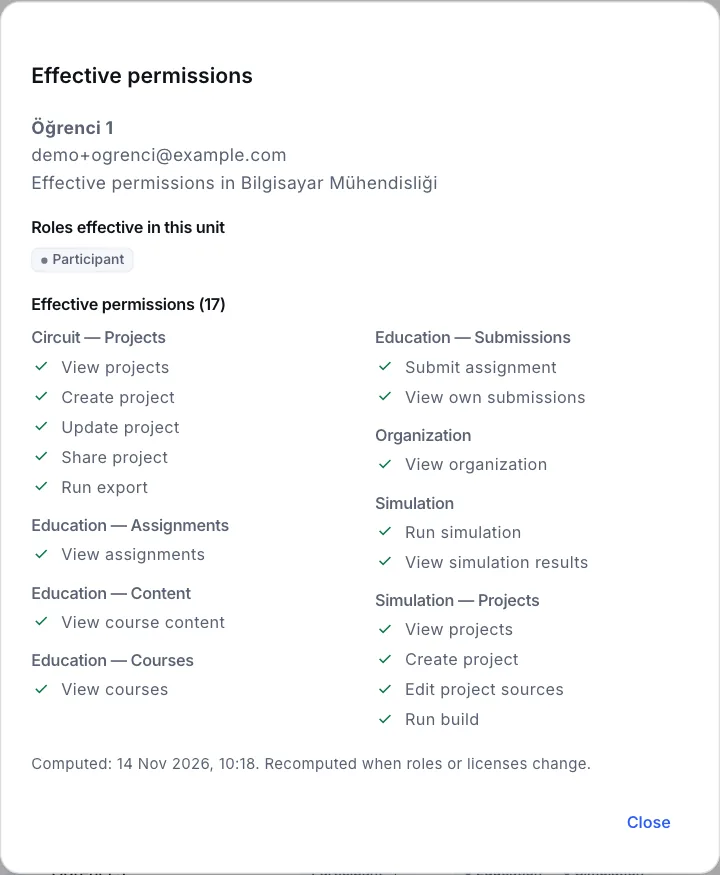
The answer to "why can't this person do that?" is in Effective permissions: open it from the ⋮ menu on their row. The dialog lists the person's effective roles in that unit and every permission their roles, together with licenses, give them. If a permission is blocked by a license, License required appears next to it.
Membership actions#
The ⋮ menu on a row opens the membership actions.
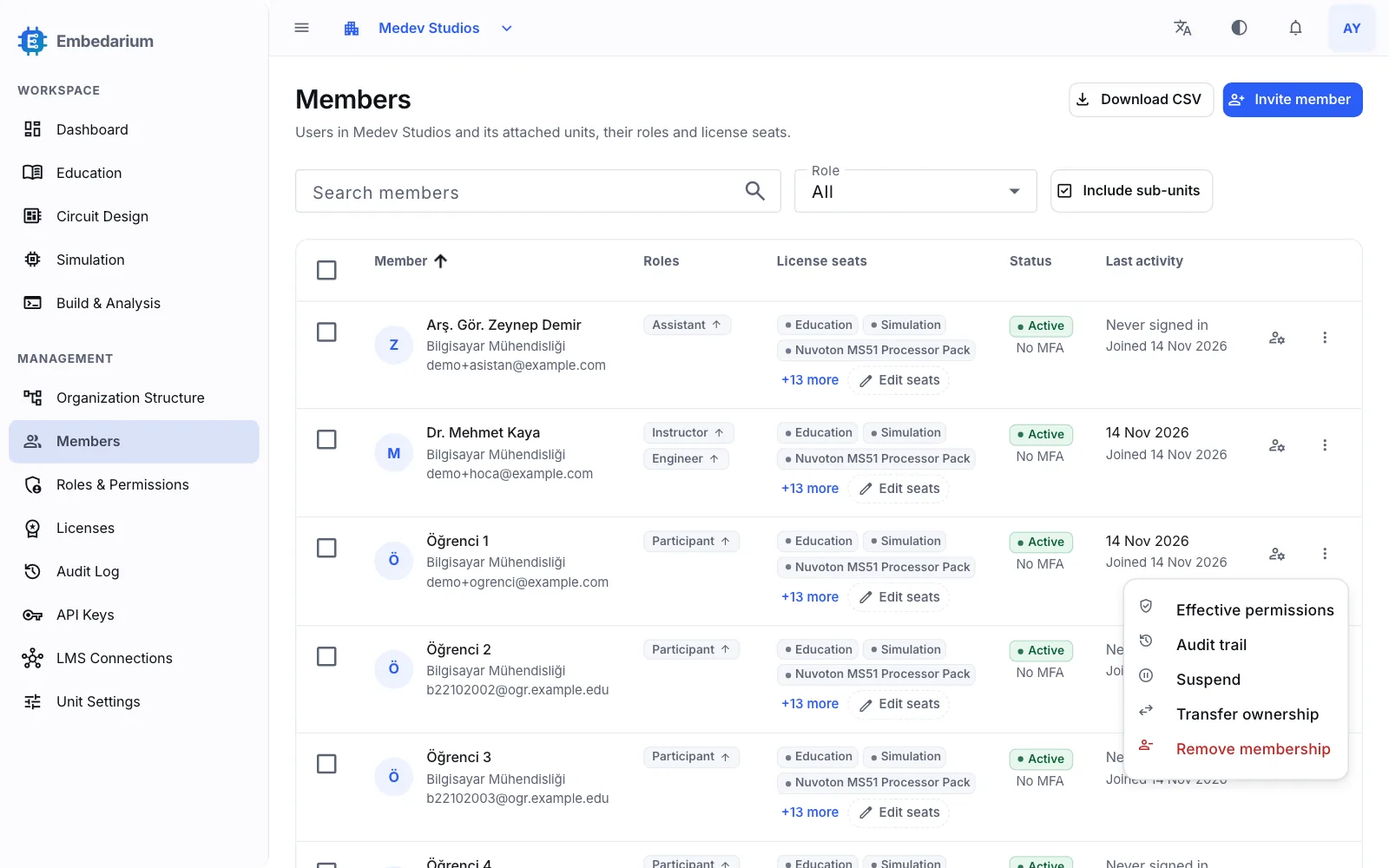
| Action | What happens |
|---|---|
| Audit trail | Opens the audit log filtered to this person's actions (see The audit log). |
| Suspend | The person immediately loses access to this unit and to wherever their roles here reach; with no other active membership in the organization, they can't enter any unit. Their license seats return to the pool. Roles and participation history are kept. |
| Reactivate | Reopens a suspended membership; access returns immediately. License seats aren't given back automatically — you assign them again. |
| Remove membership | The person is removed from this unit and their roles here are dropped. If it was their last unit, all their organization roles are removed; if they're invited again later, the old permissions don't come back. Their seats return to the pool. The account isn't closed; memberships in other units continue. |
Tip
Use Suspend for a temporary break (leave, an internship) and Remove membership for someone leaving for good. Suspending keeps the roles; when you reactivate, you only give the seats again.
Transferring organization ownership#
If you're the organization owner, you can transfer ownership to an active member of the organization:
- Choose Transfer ownership from the ⋮ menu on the new owner's row.
- Read the confirmation dialog and select Transfer.
The other person becomes the organization's owner; you stay on as an Organization Admin. Ownership only comes back if the new owner transfers it. The organization's sole owner can't be removed or suspended.
Giving seats#
The License seats column in the member list shows a person's seats. Edit seats on the row (Assign seat for someone with no seats yet) opens all of the person's licenses in one panel: a license you check gets a seat, and one you uncheck has its seat taken back. To give seats to several people at once, select their rows. Details: Assigning seats to people.
Last updated:
Could not find what you need? Write to support — tell us the screen and what you expected to happen.