
LMS integration (LTI 1.3)
Organization administrators
For organization administrators and instructors — connecting Moodle, Canvas, Blackboard and other LMSs with LTI 1.3; tool URLs, platform registration, instructors opening courses from the LMS, linking assignments (deep linking), participant sign-in and grades flowing back to the LMS.
Embedarium connects to your organization's learning management system (Moodle, Canvas, Blackboard and others that support LTI 1.3) with LTI 1.3. Once connected:
- When an instructor opens Embedarium from their LMS course, a course linked to it is created.
- The instructor adds Embedarium assignments to the LMS course as activities.
- When a participant clicks an assignment in the LMS, they arrive at the assignment page in Embedarium; no separate password is needed.
- When a submission is graded, the grade flows back to the LMS gradebook.
Note
LTI 1.3 connections come with the Education — Department and Education — Institution plans. If your plan doesn't include them, the LMS Connections screen says so.
Setting up#
The organization admin in Embedarium and the LMS administrator set it up together.
1. Register the tool URLs in the LMS#
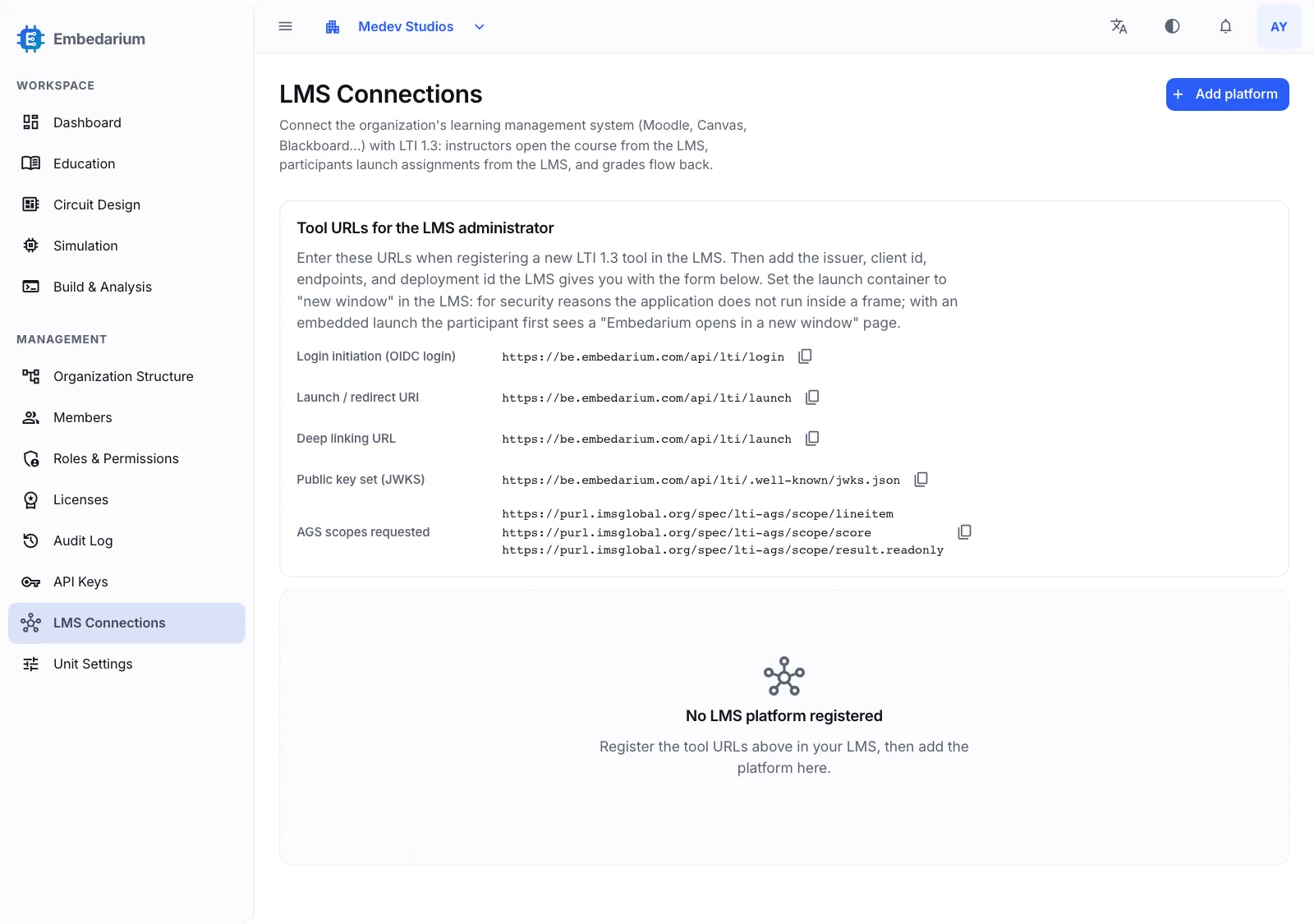
At the top of the LMS Connections screen are the URLs to give the LMS administrator. Copy each with the button next to it and enter it when registering a new LTI 1.3 tool in the LMS:
| Field | What the LMS calls it |
|---|---|
| Login initiation (OIDC login) | Initiate login URL |
| Launch / redirect URI | Redirection URI(s), Tool URL |
| Deep linking URL | Deep Linking URL (Content selection) |
| Public key set (JWKS) | Public keyset URL |
| AGS scopes requested | Assignment and Grade Services: line items, scores and reading results |
Important
In the LMS, set the launch container to new window. For security reasons Embedarium doesn't run inside another page's frame. If an embedded launch is chosen, participants first see an "Embedarium opens in a new window" page and continue from there.
2. Add the platform to Embedarium#
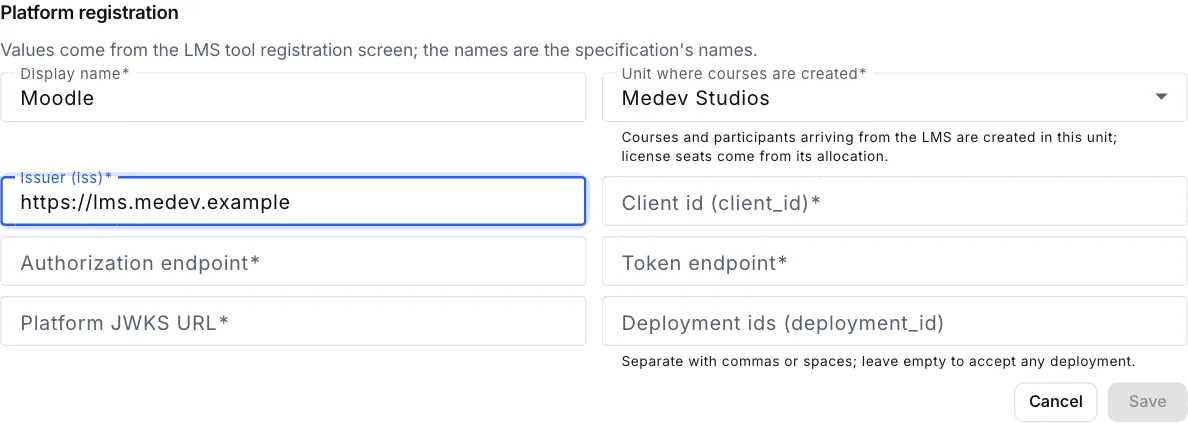
After the tool is registered, the LMS gives you an issuer URL, a client ID, endpoint URLs and a deployment ID. Enter them in Embedarium:
- Select Add platform.
- Type the Display name (for example "Moodle").
- Choose the Unit where courses are created. Courses and participants arriving from the LMS are created in this unit; participants' license seats come from this unit's seats.
- Enter the values the LMS gave you: Issuer (iss), Client id (client_id), Authorization endpoint, Token endpoint, Platform JWKS URL.
- Enter the LMS's deployment ID in Deployment ids (deployment_id). Separate several with commas or spaces; leave it empty to accept any deployment.
- Select Save.
Registered platforms are listed on the same screen: their status (Active / Inactive), deployments and how many people, courses and assignments are linked. Deactivate pauses launches temporarily. Deleting a platform removes its user, course and assignment mappings, and launching from the LMS stops working; accounts, courses and grades stay in Embedarium.
Tip
For participants to get seats, the unit you choose needs seats on the relevant licenses. If no allocation was made to the department, participants arriving from the LMS wait for a seat (see Allocating seats to sub-units).
For instructors#
Linking an LMS course to Embedarium#
The first time an instructor opens the Embedarium tool in their LMS course, a course with the LMS course's name is created in the platform's unit, published and linked to the LMS course. The instructor becomes its instructor. Later launches arrive at the same course.
Note
The instructor has to make the link. If a participant opens the tool before the instructor has linked the course, they see the warning "The LMS course is not linked to a course yet".
Adding assignments to the LMS (deep linking)#
When you add an activity in the LMS and choose the Embedarium tool, an assignment picker page opens in Embedarium:
- Tick the assignments you want to add to the LMS course. If the LMS accepts only one item, you choose one assignment.
- Select Send to LMS. You return to the LMS, and each assignment is added as an activity and a column in the gradebook.
If the course has no assignments yet, the page points you to Create assignment.
Grades flowing back to the LMS#
When a submission to a linked assignment is graded (manually or automatically), the score is sent to the LMS gradebook. Delivery runs in a queue and is retried if it fails. The assignment page shows the LMS linked badge and the delivery status: how many grades were sent, how many are queued and how many failed. A submission without a score isn't sent to the LMS.
For participants#
- When a participant clicks an assignment in the LMS, Embedarium opens in a new window and they arrive at the assignment page. They're enrolled in the course automatically.
- On the first launch, if the email the LMS reports belongs to an existing Embedarium account, the account's owner is asked to confirm the link; confirming needs the same proof as signing in. If there's no account, a participant account is created for the person.
- If the account has two-factor authentication on, it's asked when arriving from the LMS too.
- If the account was created from the LMS, the interface language starts as the LMS's language; the person can change it later in their profile.
- Details: Signing in from an LMS.
Roles#
The role in the LMS decides the course role in Embedarium: an instructor in the LMS becomes the course's instructor, a teaching assistant or grader becomes an assistant, and a student becomes a participant. The matching organization role is also given in the platform's unit.
If an administrator has taken an LMS role away in Embedarium, the person's next LMS click doesn't bring it back; giving the role back is the administrator's decision.
Last updated:
Could not find what you need? Write to support — tell us the screen and what you expected to happen.