
Getting started with Embedarium
Everyone
Open your account from an invitation, sign in, reset your password and use two-factor authentication; then find your way around the app — sidebar, unit switcher, notifications and dashboard.
Embedarium runs in the browser; there is nothing to install. A current Chrome, Edge, Firefox or Safari is enough. The app's address depends on your organization's installation; on the service hosted by Embedarium it is https://app.embedarium.com.
How do I get an account?#
There is no public sign-up. Your account is created through your organization, in one of two ways:
- Email invitation: your organization's administrator or your instructor invites you by email address. You open the link in the email.
- From your learning management system (LMS): if your organization has connected Embedarium to an LMS such as Moodle or Canvas, opening the Embedarium activity in your course creates your account automatically. See Signing in from an LMS below.
Opening your account from an invitation email#
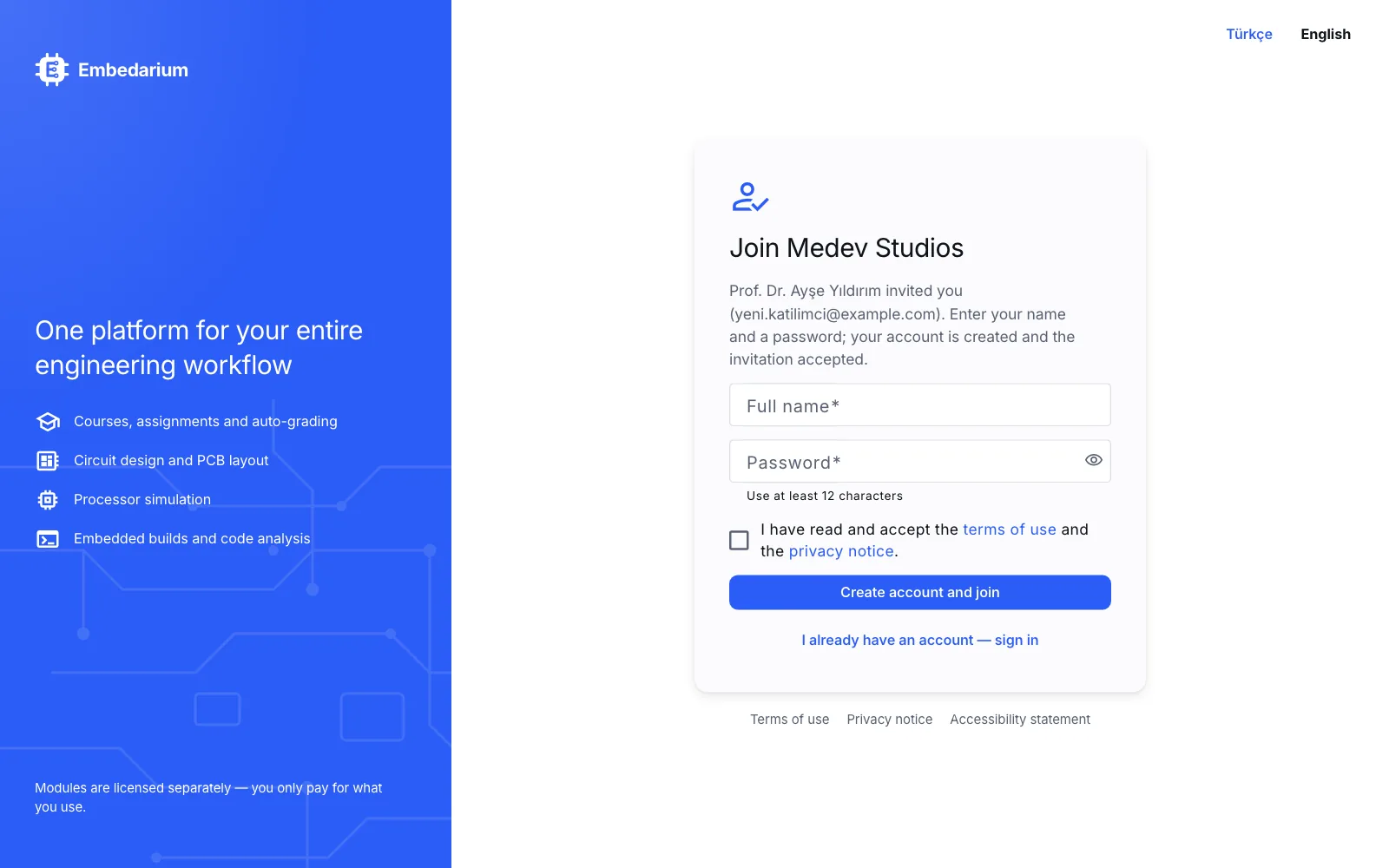
- Open the Accept the invitation link in the invitation email. The link is valid for 7 days by default; if it has expired, ask the person who invited you to renew it.
- Enter your full name and choose a password of at least 12 characters.
- Read the terms of use and the privacy notice and tick the box.
- Select Create account and join. Your account is created and you land on the dashboard as a member of the inviting organization.
Tip
If you already have an Embedarium account with this email address, don't fill in the form; use I already have an account — sign in and the invitation is added to your account.
How do I sign in?#
- Open the app's sign-in page.
- Enter your email address and password.
- On your own computer you can tick Remember this device: your session on this device then lasts 90 days instead of 30. Don't tick it on a shared computer.
- Select Sign in.
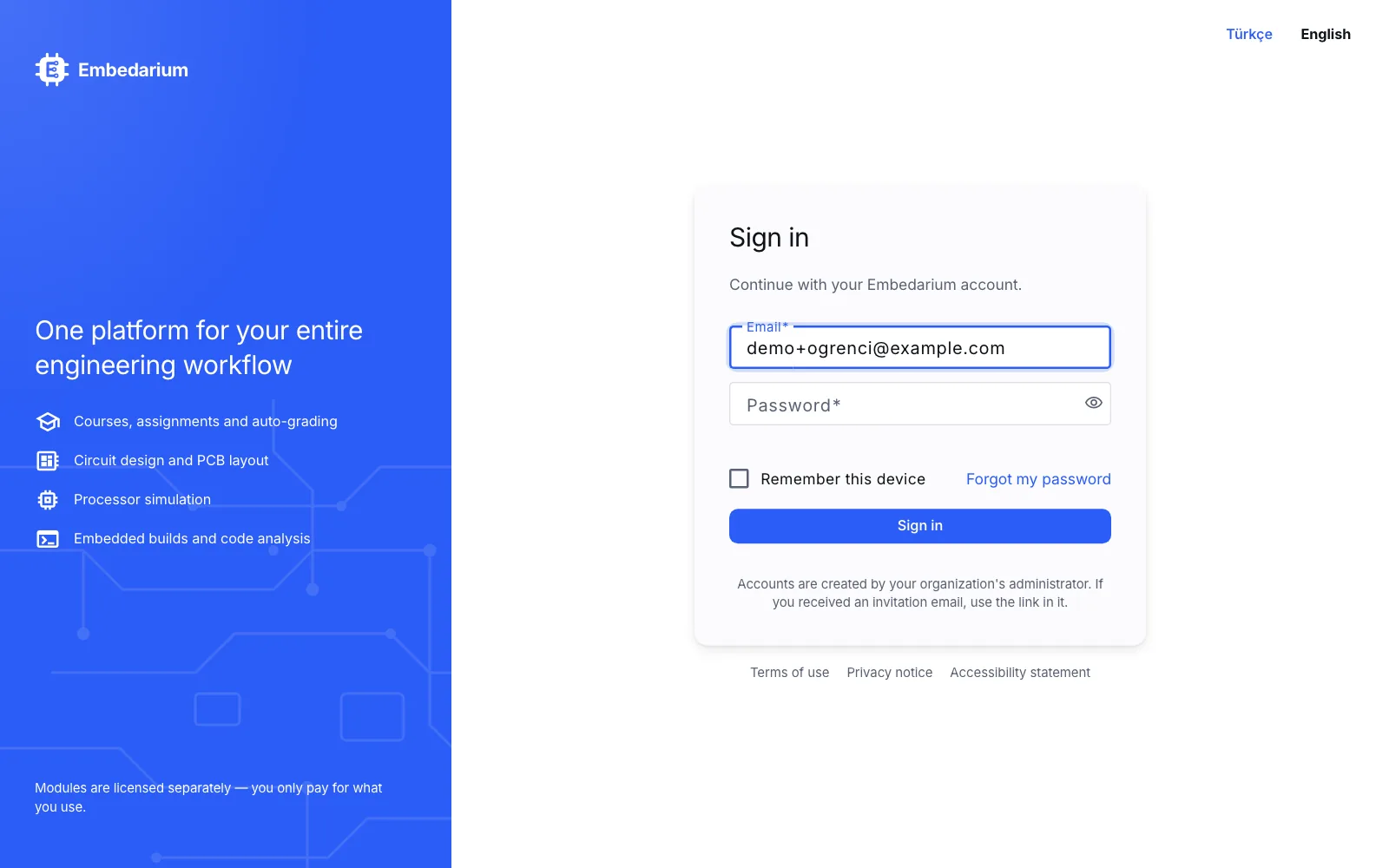
On your first sign-in your organization may ask you to accept the current terms of use; when the terms change, you are asked once more.
I forgot my password#
- On the sign-in page, select Forgot my password.
- Enter your email address and send. If an account exists for this address, a reset email arrives.
- Open the link in the email and choose a new password. The link is valid for 1 hour and works only once.
When your password changes, your sessions on other devices are closed; sign in there again.
"Account locked" message#
After 10 wrong passwords in a row, sign-in to the account from that network is blocked for a while. The first lock lasts 15 minutes; if it happens again it grows to 1 hour, 4 hours, 12 hours and at most 24 hours. A warning email is sent to the account's address when a lock happens.
If you don't remember your password, reset it instead of waiting. If you didn't cause the lock, someone may be guessing your password: change it and turn on two-factor authentication.
Signing in with two-factor authentication#
If two-factor authentication is on for your account, after your password you enter the 6-digit code shown by your authenticator app (Google Authenticator, Microsoft Authenticator, 1Password and so on). If you can't reach your phone, choose I cannot access my authenticator — use a recovery code and enter one of the recovery codes you saved when you turned it on. Each recovery code works once.
If your organization requires two-factor authentication, the rest of the app stays closed until you finish setting it up. See Turning on two-factor authentication.
Signing in from an LMS#
If your organization connected Embedarium to your LMS (with LTI 1.3), select the Embedarium link in your course: Embedarium opens in a new tab and knows who you are.
- On the first launch your account is created and you accept the terms of use.
- If you already have an Embedarium account with the email address your LMS uses, Embedarium asks for your password once to confirm the account is yours; later launches go straight in.
- Grades and assignments from the LMS end up in the same account.
Find your way around#
After you sign in, the Dashboard opens. Every screen has the same two parts: the sidebar on the left and the bar at the top.
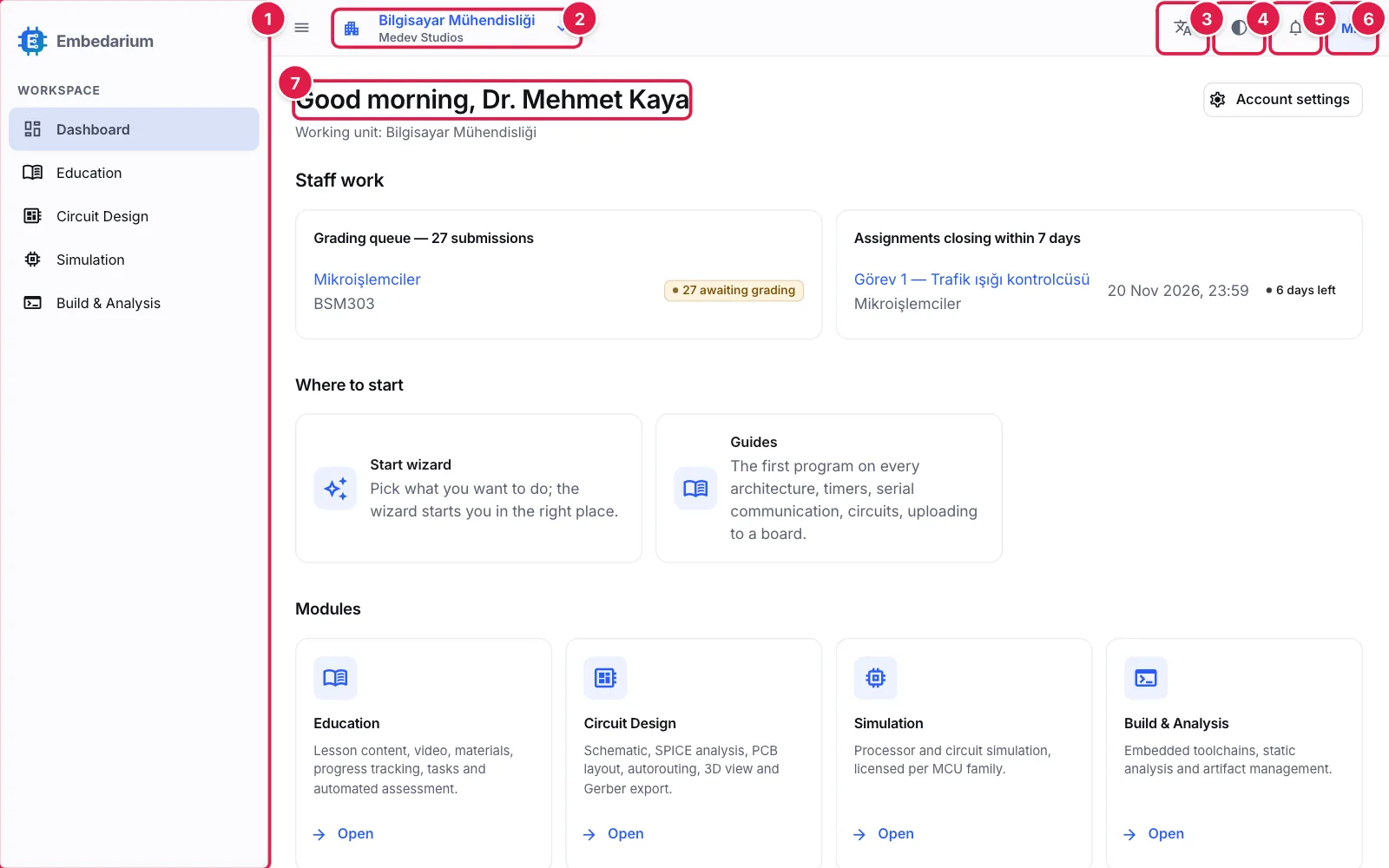
- Sidebar: switch between modules — Dashboard, Education, Circuit Design, Simulation and (if your license includes it) Build & Analysis. Administrators also see a Management section below. The ☰ button at the top left collapses the sidebar; on narrow screens it opens the menu.
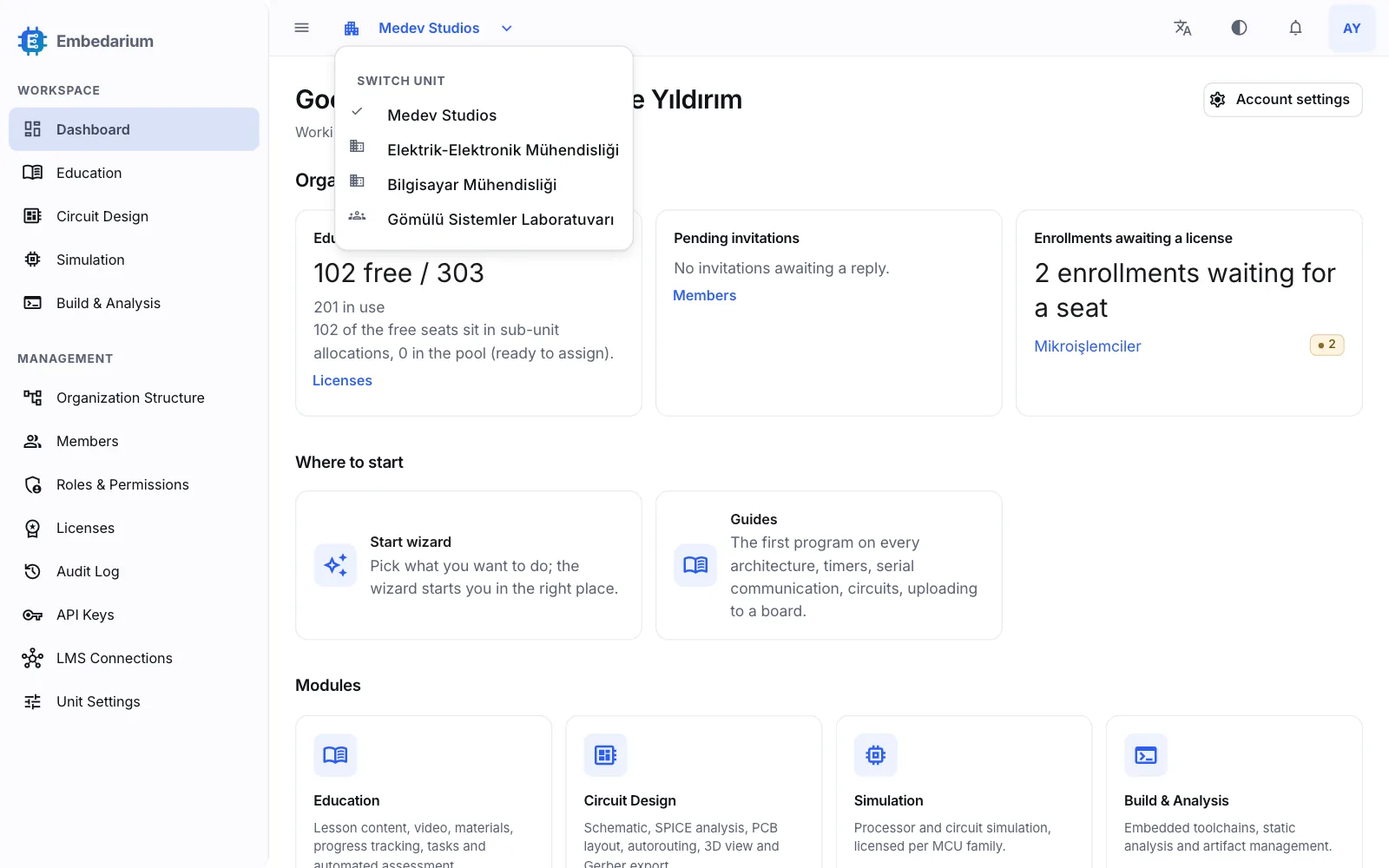
- Unit switcher: shows the unit you are working in (a department, a team or the whole organization). If you belong to more than one unit, switch here.
- Language: Turkish or English. The choice is saved to your profile and notification emails use it too.
- Appearance: System theme (follows your computer's light or dark setting), Light theme or High contrast. This is stored on the device only.
- Notifications: your latest notifications; a dot on the icon means unread ones.
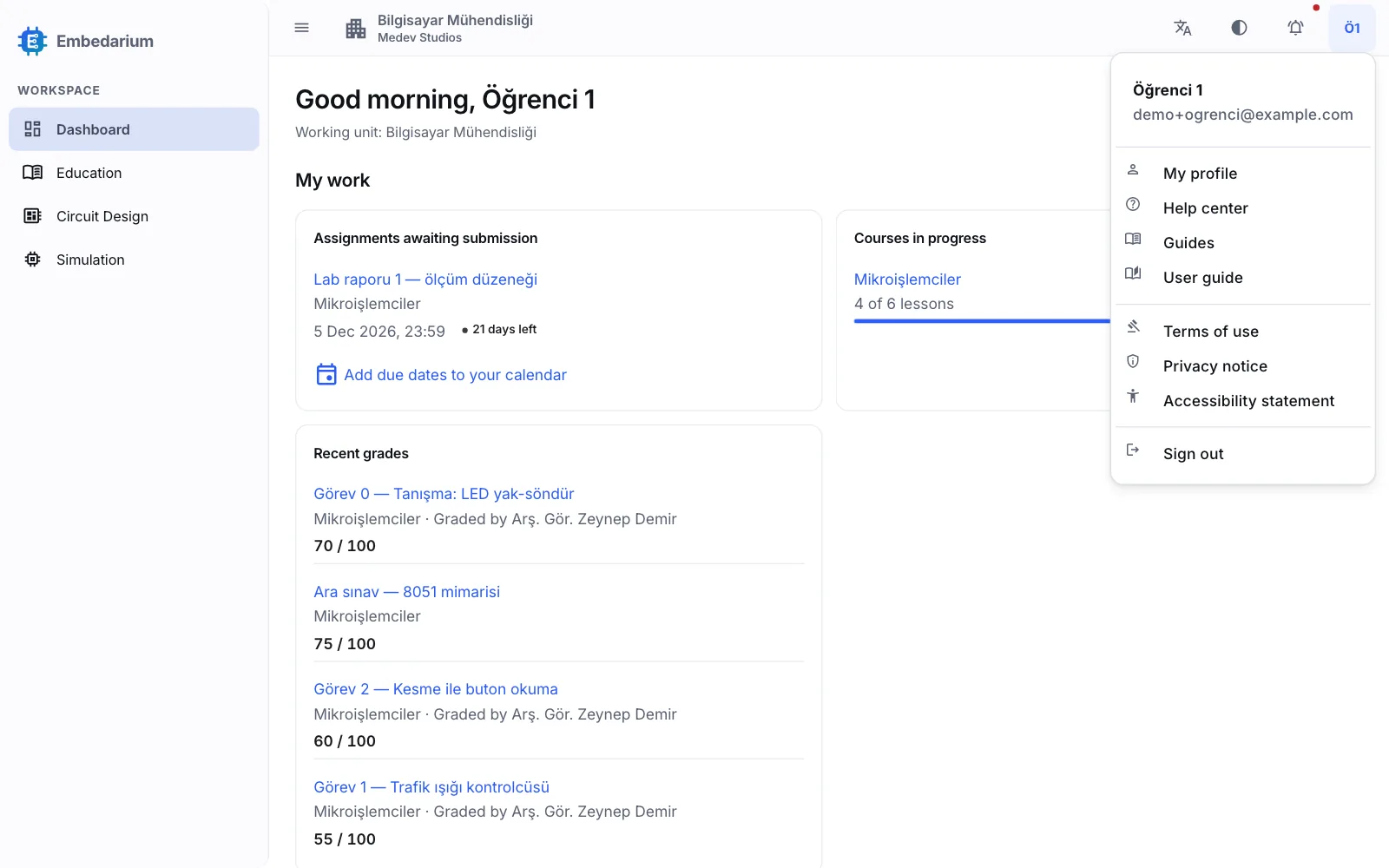
- User menu: your profile, the help center, the guides, legal documents and Sign out.
- Page title: the name of the current screen. Buttons for the page sit to the right of the title.
The dashboard#
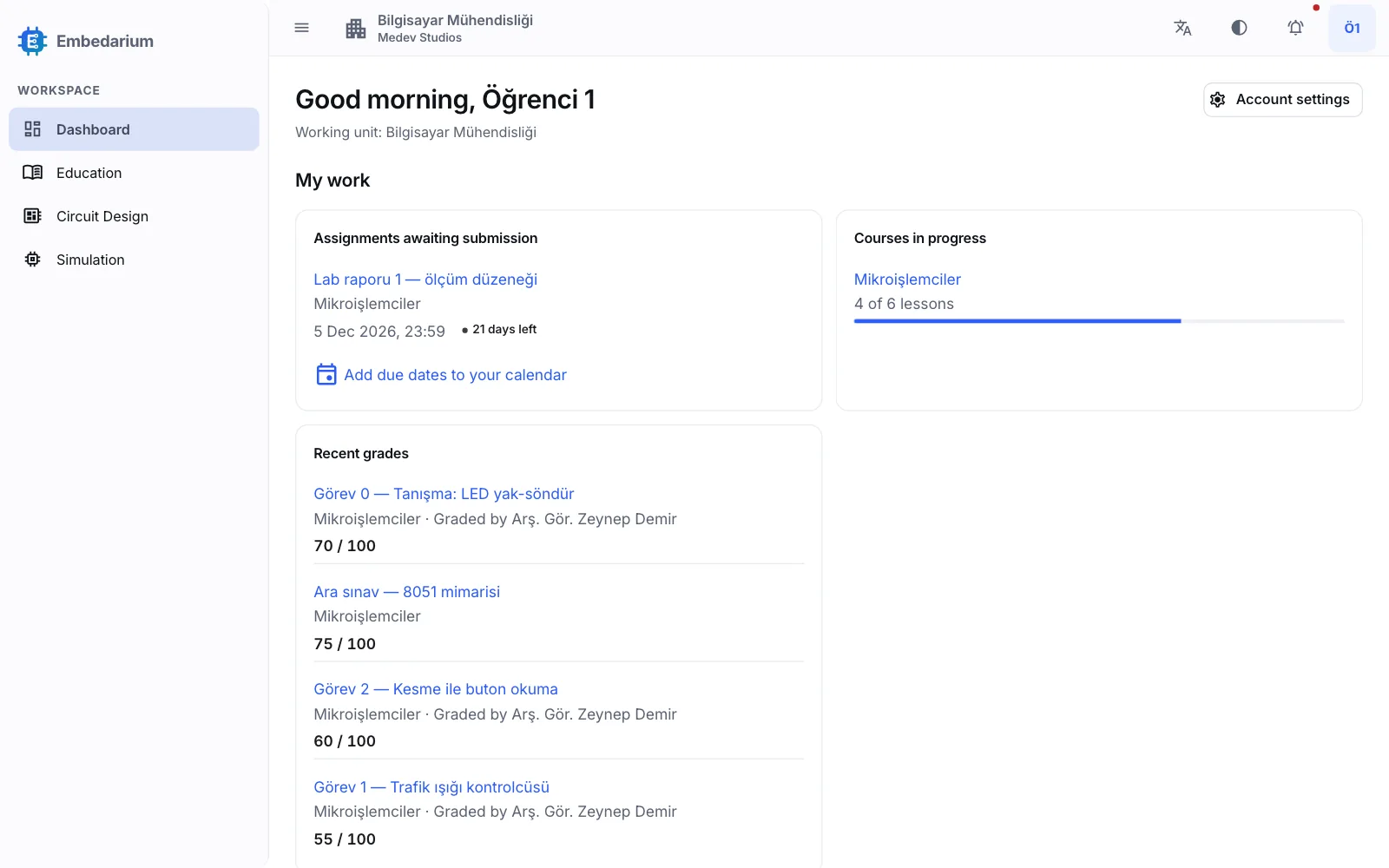
The dashboard shows your pending work for your role:
- Students: assignments awaiting submission (with the time left), courses in progress with your progress, and recent grades.
- Instructors and assistants: the grading queue and assignments closing soon.
- Administrators: seat usage, pending invitations, enrollments waiting for a seat and license warnings.
Below are the Where to start cards (Start wizard, Guides) and the Modules you can open. A module your license doesn't include is shown locked; it unlocks when your administrator assigns you a seat (see Licenses and seats).
Working in more than one unit#
A person can belong to several units — for example a department and a lab team. Lists, permissions and licenses follow the unit selected at that moment. To switch, select the unit name in the top bar and pick one from the list.
Note
If a notification or an email links to another unit, Embedarium switches to that unit on its own. If you have unsaved changes, it asks first.
Notifications#
Select the bell to see your latest notifications: new assignments, course announcements, grades, invitations, license warnings. Selecting a notification marks it read and takes you to the screen it is about. Mark all as read marks everything; the All notifications page lists older ones day by day.
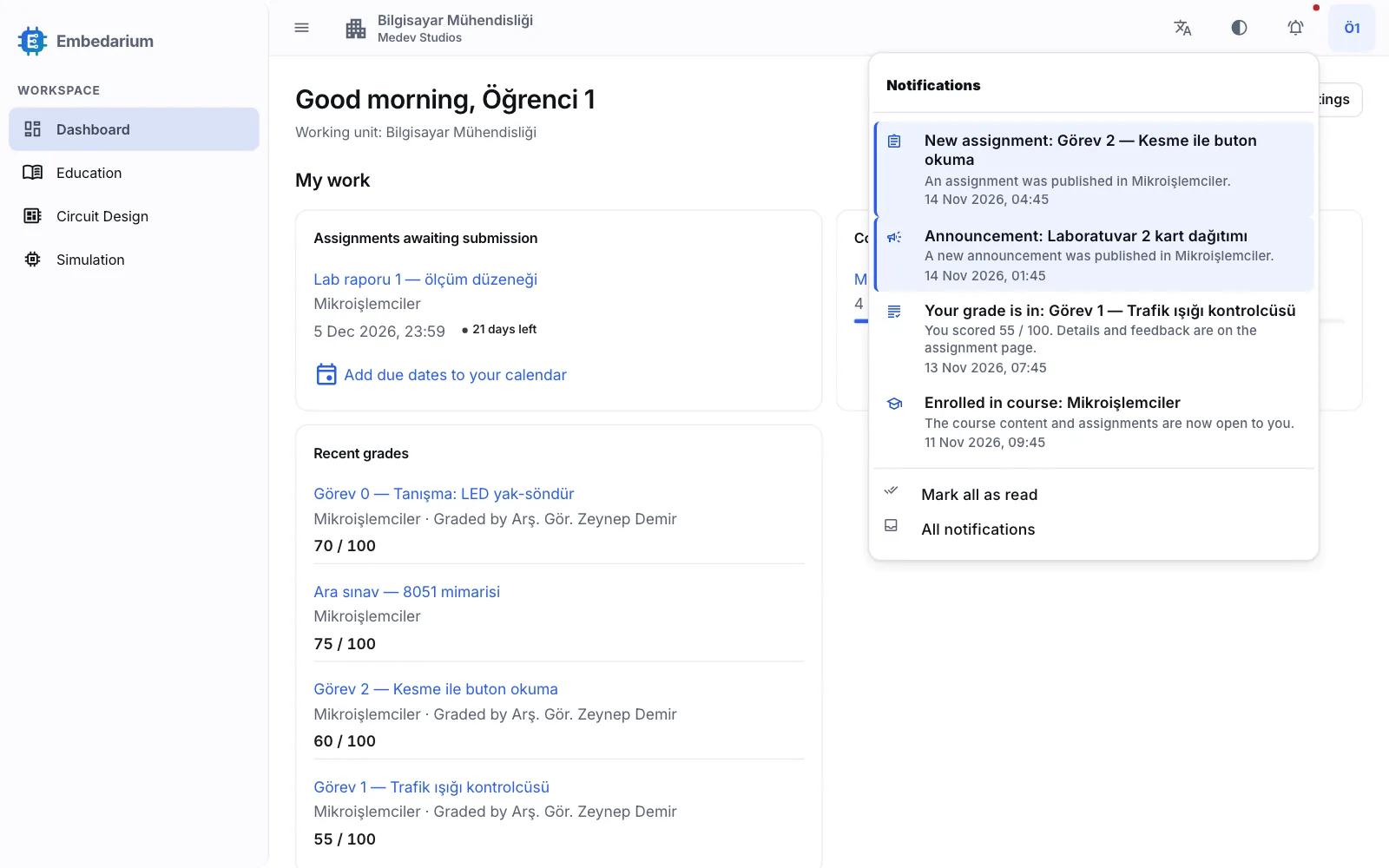
Most notifications also arrive by email. You choose which emails you receive in your profile: Email preferences.
The user menu and signing out#
Select your initials at the top right to open the user menu: My profile, Help center, Guides, the terms of use, the privacy notice, the accessibility statement and Sign out.
Help inside the app#
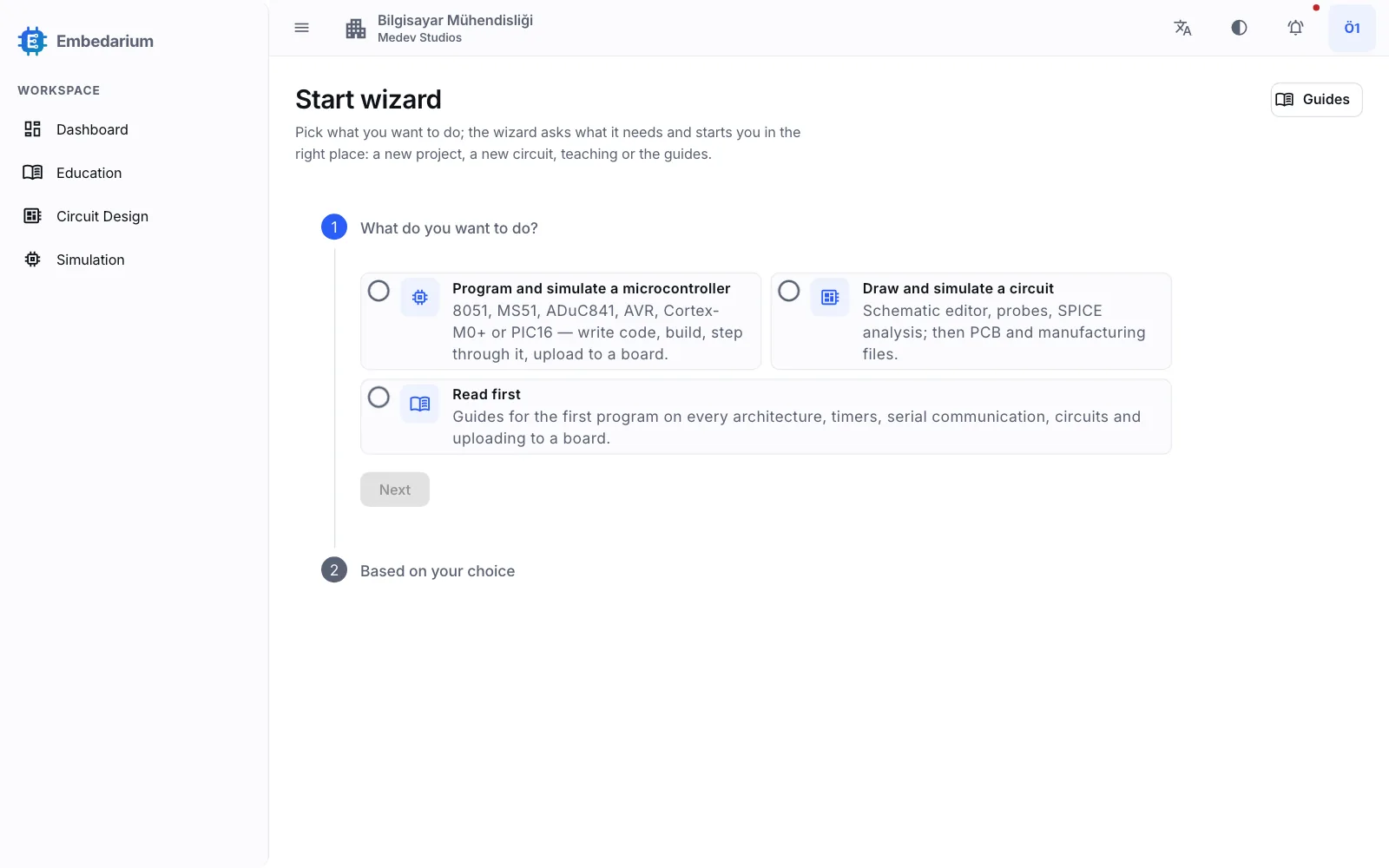
- Start wizard: choose what you want to do — Program and simulate a microcontroller, Draw and simulate a circuit, Teach a course or Read first. The wizard asks for the target processor and a catalog example or a template, creates the project and takes you straight to the workspace.
- Guides: step-by-step walkthroughs for a first program on each processor architecture, timers, serial communication, circuits, PCB, uploading to a board and the instructor workflow, with code snippets and ready-made examples.
- Help center: short explanations for your role and the keyboard shortcuts.
Installing the app on your computer or phone#
Embedarium can be installed from the browser as an app: in Chrome and Edge with the Install icon in the address bar, in Safari (iPhone, iPad) with Share → Add to Home Screen. The installed app opens in its own window. It still needs an internet connection.
What next?#
- Your account settings, two-factor authentication and email preferences: My account and security
- Students: Simulation projects and My courses
- Instructors: Setting up a course
- Organization administrators: Organization structure
Last updated:
Could not find what you need? Write to support — tell us the screen and what you expected to happen.